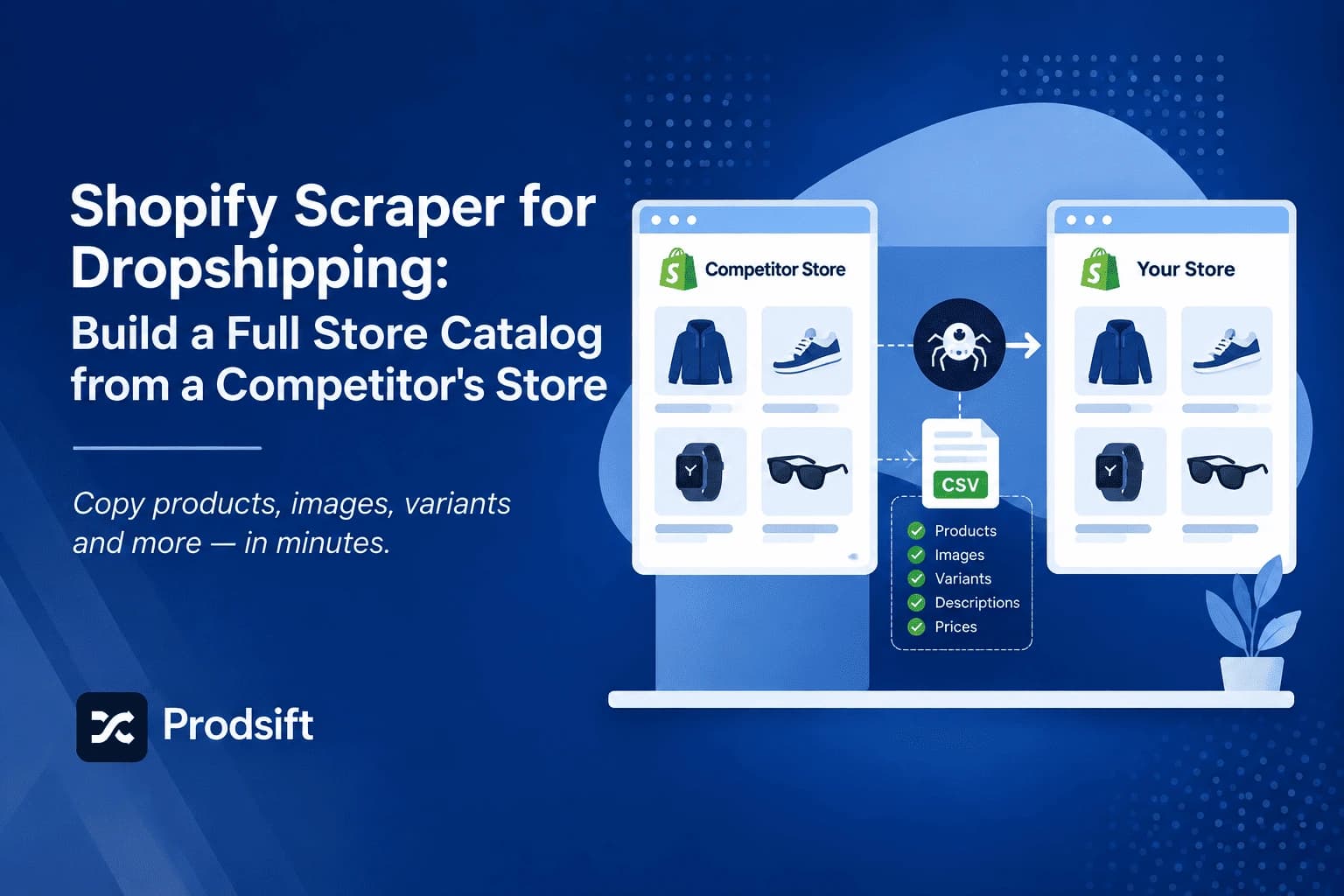
Starting a dropshipping store from an empty catalog is the slowest part of the whole business. Here's how to start from a proven one instead.
Key Takeaways
- A Shopify scraper extracts a store's full public catalog — titles, descriptions, variants, SKUs, prices, and image URLs — without admin access
- The point isn't to clone a store; it's to skip weeks of product research by starting from a catalog that already sells
- Filter by vendor and product type before you export, or you'll import 800 products you'll never list
- Always rewrite descriptions, reprice against your own supplier costs, and re-host images before going live
A Shopify scraper is a tool that reads a store's publicly visible product data and turns it into a structured CSV you can import somewhere else. For dropshippers, that solves the cold-start problem: instead of guessing which products to list, you start from the catalog of a store that has already done the testing.
This guide covers how to pick the right store to extract, how to filter the catalog down to something usable, and — the part most guides skip — what you have to change before any of it goes live.
Why dropshippers start from a competitor's catalog
Product research is the bottleneck in dropshipping, not store setup. Building the store takes an afternoon. Finding forty products worth listing takes weeks.
A competitor's catalog is a shortcut through that, because it encodes decisions someone else already paid to learn:
- Which products they kept. A store that has been live for a year has already cut its dead SKUs. What's left is what moved.
- How they priced. Their price points tell you what their market tolerates, which is more useful than any supplier's suggested retail price.
- How they organised. Their product types and collections show you how their buyers actually search.
- Which variants they stock. Sizes and colours that no longer appear were probably discontinued for a reason.
You're not buying their business. You're reading their homework.
What a Shopify scraper can actually extract
Every public Shopify storefront exposes its catalog in a structured format so that themes, apps, and search engines can read it. A scraper reads that same public data. It cannot see anything a customer couldn't see:
| Available | Not available |
|---|---|
| Product titles and descriptions | Sales volume or revenue |
| All variants, options, and SKUs | Customer data of any kind |
| Prices and compare-at prices | Supplier names or cost prices |
| Stock availability per variant | Traffic, conversion rate, or ad spend |
| Product type, vendor, and tags | Draft or unpublished products |
| Image URLs | Anything behind a login |
That right-hand column matters. A catalog tells you what a store sells, not how well it sells. Treat extracted data as a research shortlist, not proof of demand.
Step 1: Pick the right store to extract
Most people pick badly here. The biggest store in the niche is usually the worst choice — a 5,000-SKU catalog gives you noise, and you can't compete on their pricing anyway.
Look for:
- Your size, one year ahead. A focused store with 50–300 products has made real decisions about what to keep.
- Same supplier region. If you source from the same place they do, their catalog is actually reproducible for you.
- Recently updated. Check whether new products have appeared in the last few months. A stale catalog is a dead store, and dead stores are bad teachers.
Pull two or three stores rather than one. Products that appear across all of them are the signal.
Step 2: Extract the catalog
Paste the store URL, let the extraction run, and you'll get the full catalog on screen before you export anything. Large stores take longer than small ones, but a few hundred products is a matter of seconds.
If you want the field-by-field breakdown before you start, the Shopify scraper page covers exactly what comes back from a storefront and how the export formats differ.
See how the Shopify scraper works
Paste any Shopify or WooCommerce store URL and get a clean, import-ready CSV in seconds. First 5 products free — no credit card needed.
View the toolIf the store turns out not to run on Shopify, that's fine — a good extractor detects the platform itself and handles WooCommerce the same way. The WooCommerce version of this workflow is in WooCommerce scraper for dropshipping.
Step 3: Filter before you export
This is where most people waste their first extraction. They export everything, open a 900-row CSV, and abandon it.
Filter the results down first:
- By product type — the fastest way to isolate one category from a mixed catalog
- By vendor — useful when a store carries several brands and you can only source one
- By availability — out-of-stock variants are often discontinued lines
Aim to export something you could realistically list this week. Forty well-chosen products beat four hundred you'll never touch.
Step 4: Export in the format your store actually uses
If your store runs on Shopify, export a Shopify CSV and import it under Products → Import. If your store runs on WooCommerce, export a WooCommerce CSV — a Shopify-formatted file will import into WooCommerce with mismatched columns and you'll spend an hour fixing it by hand.
Pick the format based on where the data is going, not where it came from.
Step 5: Change everything that identifies the source
Importing a competitor's catalog and listing it as-is is the fastest way to build a store that ranks for nothing and gets taken down. Before you publish:
- Rewrite every description. Duplicate product copy across two stores is a real SEO problem, and the copy was written for their brand voice anyway.
- Re-host the images. Hotlinking image URLs from their CDN means their bandwidth, their control, and a broken catalog the day they notice.
- Reprice from your own costs. Their margin structure isn't yours. Use their prices as a ceiling reference, not a target.
- Drop anything you can't source. A listed product you can't fulfil costs you more than an empty category.
- Strip their branding. Vendor fields, SKU prefixes, and tags often carry the source store's name straight into your catalog.
Publicly visible product information is generally accessible, but terms of service and local law still apply — and copied marketing copy and product photography are a separate question from the data itself. Check both before you use anything commercially.
FAQ
Yes, for publicly visible products. A Shopify scraper reads the same catalog data a customer's browser loads. It cannot access anything requiring admin login — no orders, no customers, no draft products.
As many as the store publishes. Catalogs in the thousands are common and extract fine; the practical limit is how many you're willing to review afterwards.
The CSV contains image URLs, not image files. Most platforms will fetch those URLs on import, but you should download and re-upload them to your own store so you aren't depending on someone else's server.
Extracting publicly accessible product data is generally permitted, but reusing copyrighted descriptions and photography is a separate matter, and site terms of service may restrict automated access. Rewrite copy, re-shoot or license images, and check the rules in your jurisdiction.
Platform detection should be automatic. WooCommerce stores expose their catalogs publicly too, and the extraction and export process is identical.
Start with one competitor's catalog
Paste any Shopify or WooCommerce store URL and get a clean, import-ready CSV in seconds. First 5 products free — no credit card needed.
Extract a store free