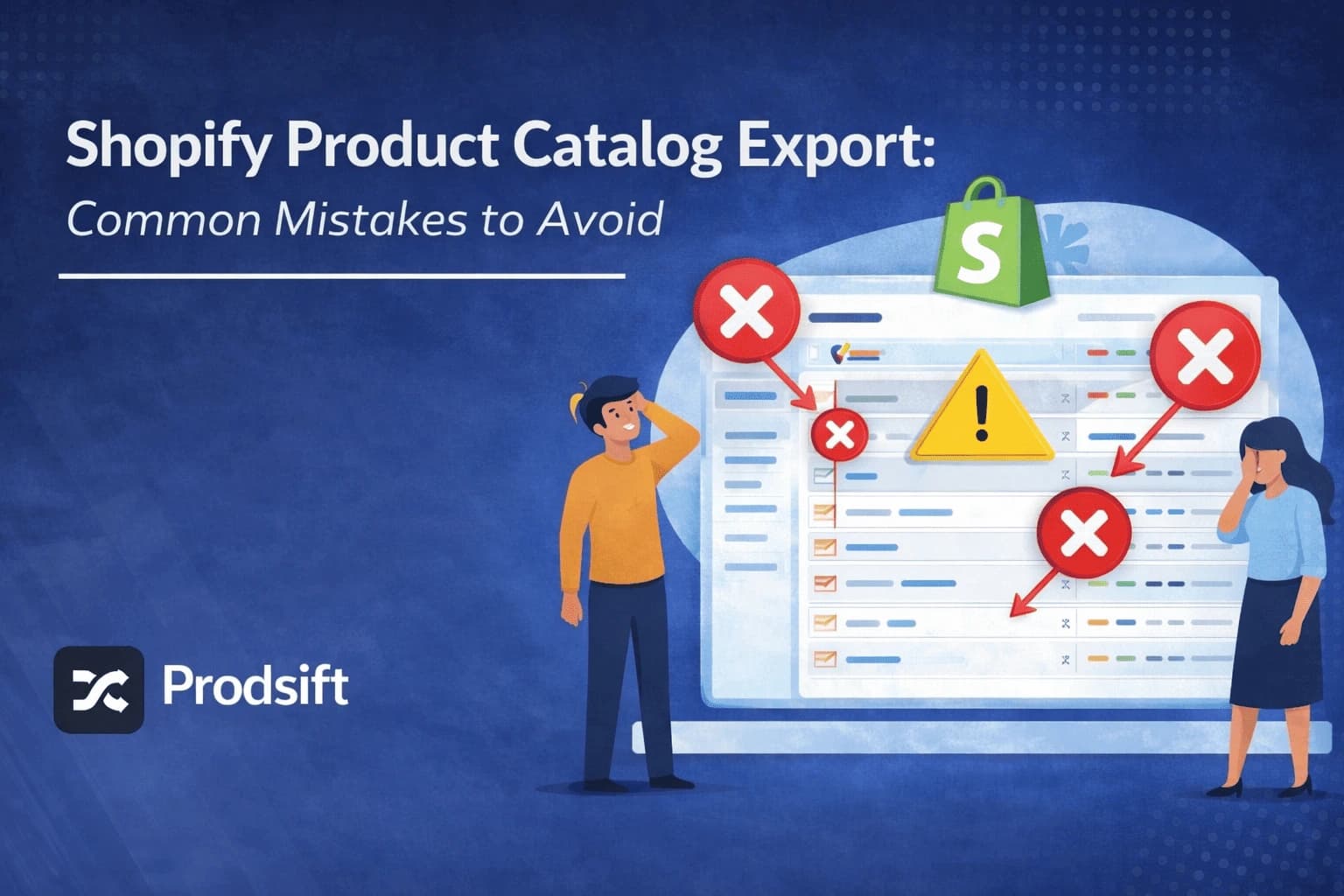
Exporting your Shopify product catalog seems straightforward — until your import fails, your images are broken, or your variants are scrambled. Here are the most common mistakes store owners and developers make when exporting Shopify products, and exactly how to avoid each one.
Key Takeaways
- Shopify's CSV uses a multi-row variant structure — editing it carelessly in Excel will break your product data
- Image URLs are included in the export but the files are not — broken image links are the #1 cause of failed re-imports
- A Shopify CSV cannot be dropped directly into WooCommerce — column names and variant structure are fundamentally different
- Metafield data (custom product fields) is silently excluded from the standard export — you won't notice until it's gone
- Always test with 5–10 products before running a full import on hundreds or thousands of SKUs
- ProdSift gives you a clean, correctly formatted CSV straight out of the box — avoiding most of these mistakes entirely
A Shopify product catalog export looks simple on the surface. You click a button, download a CSV, and you're done. But the moment you try to actually use that file — import it into WooCommerce, re-upload it to a different Shopify store, or open it in Excel for bulk editing — things start to go sideways.
Broken images. Duplicate products. Variants that import as separate items instead of options. Descriptions stripped of formatting. Missing stock levels. These aren't rare edge cases — they're the default outcome if you don't know what to watch for.
This guide covers every major mistake people make when exporting and working with Shopify product catalog data — and the exact fix for each one.
Why Shopify product catalog exports go wrong
Most export problems don't happen during the export itself — they happen in what comes after. The Shopify CSV format was designed primarily for importing back into Shopify. It makes certain structural choices (like representing every variant as its own row) that make total sense within Shopify's own ecosystem, but become a source of confusion the moment you try to use the file anywhere else.
Layer on top of that the quirks of spreadsheet software, the differences between platform import requirements, and the silent omission of certain data types — and you have a format that rewards people who understand its structure and punishes those who don't.
Let's go through the mistakes one by one.
⚠️ Mistake 1: Exporting without filtering first
By default, Shopify's export includes everything — active products, draft products, archived products, and products with zero inventory. On a store that's been running for a few years, this can mean hundreds of obsolete SKUs mixed into your export alongside your live catalog.
If you're exporting to migrate to a new store, you don't want to carry all that dead weight over. If you're exporting for a bulk price update, editing archived products by accident is a waste of time at best and actively harmful at worst.
✓ The fix: Before clicking Export, filter your Products list by status. In the Shopify admin products screen, use the Status filter to show only Active products. You can also filter by product type, collection, or vendor if you only need a subset. The export will only include what's currently shown in the filtered view.
⚠️ Mistake 2: Ignoring the variant row structure
This is the most technically misunderstood aspect of Shopify's CSV format. In Shopify's export, a product with multiple variants doesn't get one row — it gets one row per variant. A t-shirt with 3 sizes and 4 colours has 12 variants, and therefore 12 rows in your CSV. Only the first row contains the product title, description, and other top-level fields. The remaining rows only contain variant-specific data (price, SKU, stock, option values) with the title column left blank.
The common mistake: someone opens the CSV, sees rows with empty title fields, and either deletes them (thinking they're blank rows) or sorts the spreadsheet by a column — which separates variant rows from their parent product row and completely destroys the structure.
| Title | Option1 Name | Option1 Value | Variant Price | Variant SKU |
|---|---|---|---|---|
| Classic Tee | Size | Small | 29.99 | TEE-SM |
| — | Medium | 29.99 | TEE-MD | |
| — | Large | 29.99 | TEE-LG | |
| — | X-Large | 29.99 | TEE-XL |
The title only appears on the first variant row. Sorting or deleting blank title rows destroys the structure.
✓ The fix: Never sort a Shopify CSV by any column other than the row number. If you need to find specific products, use the Find & Replace function (Ctrl+F / Cmd+F) to search within the file. If you want to edit a subset of products, filter in Shopify admin first and export only those — don't try to slice up a full export in your spreadsheet.
⚠️ Mistake 3: Assuming images will transfer automatically
The Shopify CSV export does not contain your product images. It contains the URLs where those images are currently hosted — on Shopify's CDN. When you import the CSV into a new store, the destination platform fetches images from those URLs. This works fine as long as those URLs remain valid.
The problem: if you're migrating away from Shopify and plan to close or downgrade your account, those CDN URLs may eventually become unavailable. Re-importing the CSV after the source store is gone will result in every product importing with a broken image.
A second common image failure: some stores use CDNs or image hosting with hotlink protection enabled. WooCommerce tries to sideload images during import — if the source server blocks the request, images fail silently. You'll end up with text-only products and no error message.
✓ The fix: If you're migrating to a new platform, download the actual image files before closing your Shopify account. Tools like HTTrack or a simple script can batch-download all image URLs from your CSV. Re-upload them to the destination server or a permanent CDN, and update the image column in your CSV before importing. Don't rely on the source CDN staying alive indefinitely.
⚠️ Mistake 4: Using a Shopify CSV directly in WooCommerce
This might be the single most common mistake in platform migration — and it's also the most time-consuming to fix after the fact. Shopify and WooCommerce use completely different CSV column conventions. You cannot take a Shopify export and drop it into WooCommerce's importer and expect it to work.
| Field | Shopify column | WooCommerce column |
|---|---|---|
| Product name | Title | Name |
| Description | Body (HTML) | Description |
| Sale price | Variant Compare At Price | Sale price |
| Regular price | Variant Price | Regular price |
| SKU | Variant SKU | SKU |
| Stock qty | Variant Inventory Qty | Stock |
| Images | Image Src | Images |
| Product type | Type | Categories |
Beyond column names, the variant structure is also different. WooCommerce expects variable products to be structured with a parent product row and separate variation rows linked by a parent SKU — not the flat multi-row format Shopify uses. Remapping a Shopify CSV manually for WooCommerce import is a 30–60 minute job per catalog, and it's easy to introduce errors.
ProdSift extracts any Shopify store's product catalog and outputs a CSV already formatted for WooCommerce import — correct column names, correct variant structure, images included. No spreadsheet gymnastics required.
- Paste your Shopify store URL into ProdSift
- Download the WooCommerce-formatted CSV
- Import directly — no column remapping needed
Skip the remapping entirely
Get a Shopify product catalog export that's already formatted for WooCommerce. First 5 products free — no credit card.
Try it free⚠️ Mistake 5: Losing metafield data
Shopify's standard product export does not include metafields. Metafields are custom data fields that store extra product information outside of Shopify's standard schema — things like material composition, care instructions, size guides, warranty details, or any custom data a store has added via apps or the API.
On a store that's been customised heavily — or one that uses metafield-editing apps or Shopify's native metafield editor — there can be significant product data stored in metafields. None of it shows up in the standard CSV export. If you migrate based solely on the CSV, this data is silently lost.
✓ The fix: Before migrating, audit your store's metafields using the Shopify admin (Settings → Custom data → Products) or a metafield viewer app. If you have important metafield data, export it separately using the Shopify Admin API or a dedicated metafield export app. Document what metafields exist and what values they hold before you start the migration process — after the fact is too late.
⚠️ Mistake 6: Not testing with a small batch first
Running a full 500-product import on the first attempt — without testing on a small batch — is one of the most reliable ways to waste an afternoon. Import issues compound: a formatting error that affects 10% of your products means 50 products need to be manually fixed after the fact.
Common issues that only reveal themselves on import: images failing to sideload for certain products, variants not linking correctly to their parent, HTML description tags rendering as literal text instead of formatting, categories not being created properly, or products importing as the wrong type.
✓ The fix: Cut the first 10–15 rows of your CSV (making sure to include at least one simple product and one variable product with all its variant rows) and import that first. Review every aspect of those test products — title, description rendering, images, variants, price, stock, category assignment — before running the full import. Delete the test products, fix any issues in your CSV, then run the full import.
⚠️ Mistake 7: Editing the CSV in the wrong app
Microsoft Excel is the default choice for most people when they see a CSV file. It's also one of the most dangerous tools to use with a Shopify product export if you're not careful.
Excel has a habit of silently reformatting certain types of data when it opens a CSV. Long numeric strings that look like product IDs or barcodes get converted to scientific notation. Dates get reformatted. Leading zeros in SKUs or postal codes are quietly dropped. HTML in description fields can trigger formula-detection. And when you save, Excel asks if you want to keep the CSV format, but may still apply changes you didn't intend.
- Use Google Sheets instead — import the CSV via File → Import, choosing UTF-8 encoding and "No" on auto-detecting column types. Google Sheets is much more conservative about reformatting your data.
- If you must use Excel — use the Data → From Text/CSV import wizard and set every column to Text format before loading. Never just double-click the CSV file to open it — that triggers Excel's auto-formatting.
- For large catalogs, use a code editor — VS Code or Sublime Text with a CSV plugin lets you view and do simple edits on large files without any risk of auto-formatting. Use Find & Replace for bulk text changes.
⚠️ Mistake 8: Re-importing without deduplication
When you import a CSV that contains products already in your store, the outcome depends entirely on how the importer handles matching. Shopify matches on the product's Handle column — if a handle already exists, the import updates it. If the handle is missing or has changed, Shopify creates a new product instead, giving you duplicates.
This is especially dangerous when you export, edit the CSV outside Shopify, and then re-import to apply bulk changes. If your editing process accidentally cleared or modified the Handle column on any rows — which can happen when sorting or filtering in Excel — those products will duplicate instead of update.
✓ The fix: Before re-importing a modified CSV, verify the Handle column is intact for every row. The handle is the URL slug of your product (e.g.
classic-tee) and should be a lowercase, hyphenated string. If any handles are missing or look wrong, fix them before importing. When in doubt, import to a staging environment first and compare the product count before and after.
Clean Shopify product catalog export checklist
Before you export and before you import, run through this checklist. It takes two minutes and will save you hours.
Before exporting
- Filter products by status — only export Active products unless you specifically need drafts or archives
- Decide if you need metafield data — if yes, export it separately before you start the main export
- Confirm whether you're exporting all products or a specific collection/type
After exporting, before editing
- Save an unmodified backup copy of the original export immediately
- Open in Google Sheets (not Excel) or use a CSV-safe editor
- Never sort the file — use Find & Replace to locate products
- Check that the Handle column is intact on every row
Before importing into the destination
- If importing into WooCommerce, remap column names — or use ProdSift to get a pre-formatted file
- Verify image URLs are still live and accessible
- Run a test import on 10–15 rows first and review the results thoroughly
- Check product count in destination store before and after full import to catch unexpected duplicates
FAQ
Why are my product images broken after importing my Shopify CSV?
The CSV contains image URLs, not the image files themselves. If those URLs are broken, inaccessible, or protected by hotlink prevention on the source server, the images will fail to import. Verify the URLs in your CSV are still live before importing, and consider downloading and re-hosting the images if you're doing a full platform migration.
Why did my variants import as separate products instead of options?
This usually means the variant rows got separated from their parent product row — most often caused by sorting the CSV in a spreadsheet. In Shopify's CSV format, variants only work if their rows immediately follow the parent product row with an empty Title field. Never sort a Shopify CSV by column.
My Shopify export has HTML in the description column — is that normal?
Yes, completely normal. Shopify stores descriptions in HTML format in the export. If the destination platform (like WooCommerce) accepts HTML descriptions, this is fine — it'll render correctly. If you're importing into a platform that expects plain text, you'll need to strip the HTML tags before importing.
Why does re-importing my edited CSV create duplicates instead of updating products?
Shopify matches products for update via the Handle column. If the handle is missing or was accidentally changed during editing, Shopify treats the row as a new product. Check that every product row in your modified CSV still has its original handle value intact.
Can I export Shopify metafields to CSV?
Not with the standard product export. Metafields require the Shopify Admin API or a dedicated metafield export app. If you have significant metafield data, export it before starting any migration — it cannot be recovered from the standard CSV afterward.
What's the safest way to do bulk price updates via CSV?
Export your products, open in Google Sheets (not Excel), keep the original as a backup, edit only the price-related columns (Variant Price, Variant Compare At Price), verify the Handle column is untouched on every row, do a test import on 5 products first, then run the full import.
Is there a way to avoid all these formatting issues when migrating to WooCommerce?
Yes — use ProdSift to extract from the Shopify store directly rather than trying to reformat a Shopify CSV export. ProdSift outputs a WooCommerce-formatted CSV with correct column names, correct variant structure, and live image URLs — bypassing most of the common mistakes in this guide.
Want a clean Shopify product catalog export without the headaches?
ProdSift extracts any Shopify store's catalog and gives you a correctly formatted, import-ready CSV — whether you're migrating to WooCommerce or building a new store. First 5 products free.
Start extracting free