Import Products to WooCommerce
Using CSV Files
Stop fighting CSV errors. Get a perfectly formatted WooCommerce CSV file in seconds — or follow our complete guide to master the import process.
CSV ready — 0 errors
Perfect WooCommerce format
The fastest way to get products
into your WooCommerce store.
Import in Minutes
Stop spending hours adding products one by one. Import hundreds or thousands of products in minutes.
Perfect CSV Format
No more CSV errors. Generate files that WooCommerce accepts on the first try with correct formatting.
Complete Product Data
Titles, prices, variations, images, SKUs, descriptions — everything WooCommerce needs.
No Risk, No Setup
Works in your browser. No API keys, no store access required. First 5 products free.
How to import products to WooCommerce
in 3 simple steps
Generate Your WooCommerce CSV
Use ProdSift to extract products from any store and generate a perfect WooCommerce-ready CSV file.
Upload & Map to WooCommerce
Go to Products → Import in your WooCommerce admin. Upload your CSV and map columns to product fields.
Run Import & Publish
WooCommerce validates your file. Run the importer and your products go live.
Every WooCommerce CSV field
explained.
Understanding WooCommerce's CSV format is key to successful imports. Here's every field you need to know — or just use ProdSift to skip the manual work entirely.
Pro Tip: The most common import errors come from missing required fields or incorrect formatting. Our tool generates perfectly formatted WooCommerce CSVs every time.
WooCommerce CSV Fields
Preparing Product Images
for WooCommerce import
WooCommerce doesn't store images directly in the CSV file. Instead, it references image URLs and downloads them during import. This is a critical step that many people get wrong — but we'll show you how to do it right.
Upload Images to a Server
Upload product images to your web server, CDN, or image hosting service. Images must be publicly accessible via direct URLs.
Add URLs to CSV
In the Images column, add the full URL to each image. For multiple images, separate URLs with commas.
WooCommerce Downloads During Import
During import, WooCommerce downloads each image from the URL and adds it to your WordPress Media Library. The first URL becomes the featured image.
Image URL Format (Correct)
https://example.com/images/shirt-front.jpg, https://example.com/images/shirt-back.jpg✅ First URL = Featured image
✅ Additional URLs = Gallery images
Common Image Import Mistakes
- ❌Dropbox/Google Drive share links (these redirect to preview pages, not direct image files)
- ❌Local file paths (C:/Users/Documents/image.jpg won't work - images must be online)
- ❌Password-protected URLs (images behind login pages can't be accessed)
- ❌Spaces in filenames (use hyphens instead: shirt-front.jpg not 'shirt front.jpg')
Where to Host Images
- Your web hosting server
- Cloudflare Images or R2
- Amazon S3 with public access
- Image CDN services (ImageKit, Cloudinary)
Everything you need for
successful WooCommerce imports
ProdSift handles the hard part — you just download and import into WooCommerce.
Ready-to-import CSV
Export files formatted perfectly for WooCommerce's import system. Just download and upload.
All Variations Included
Size, color, material — every product variation preserved in your CSV export with proper parent-child relationships.
Product Images
Image URLs included and formatted correctly. WooCommerce downloads them automatically during import.
Category Hierarchy
Categories and hierarchy preserved. WooCommerce creates them automatically during import.
Bulk Import Ready
Import hundreds or thousands of products at once. Optimized for WooCommerce's CSV format.
WooCommerce Format Only
Specifically designed for WooCommerce's CSV requirements. Every field matches WooCommerce spec.
Perfect for WooCommerce merchants,
agencies, and store owners
New Store Setup
Launching a new WooCommerce store? Import your entire catalog in minutes instead of days.
Platform Migration
Moving from Shopify, Magento, or BigCommerce? Extract and import directly to WooCommerce.
Bulk Price Updates
Update prices across your entire catalog with a single CSV import.
Inventory Management
Update stock quantities after receiving inventory. Much faster than manual updates.
Complete step-by-step WooCommerce import guide
with screenshots
Follow these detailed instructions to import your products into WooCommerce successfully
Access WooCommerce Product Import
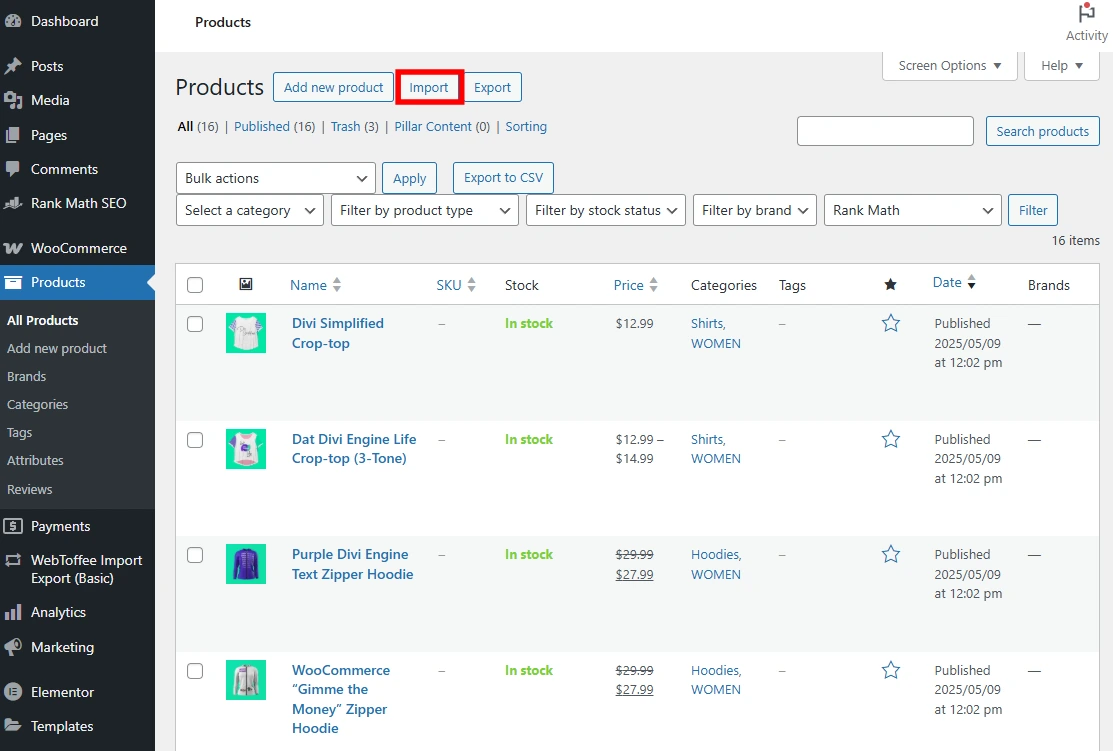
Navigate to the WooCommerce import tool
From your WordPress dashboard, navigate to Products → All Products, then click the Import button at the top of the page.
Upload Your CSV File
Select and upload your properly formatted CSV
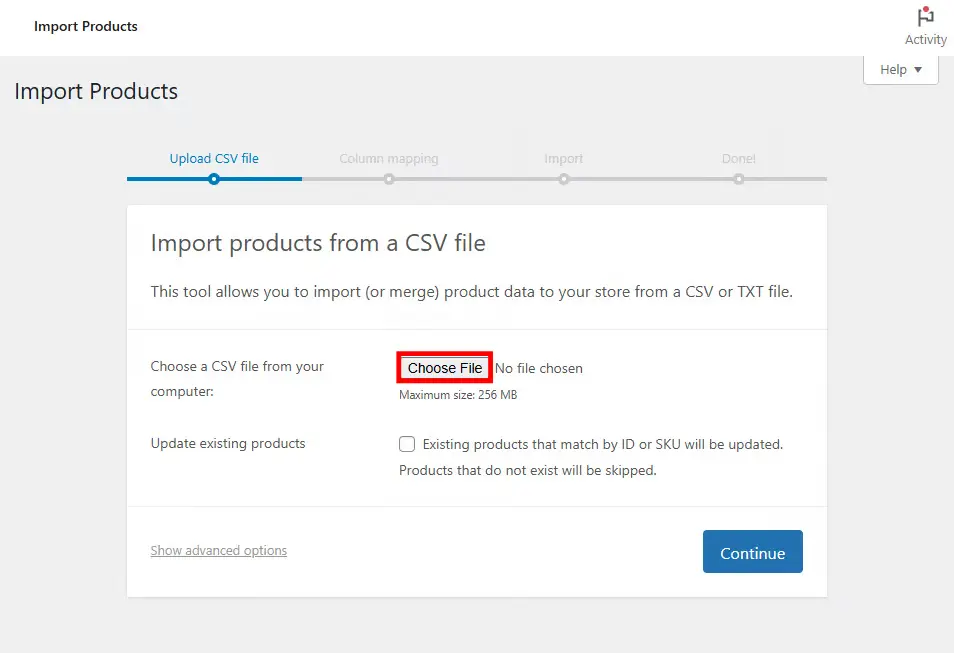
Click Choose File and select your CSV file. WooCommerce provides helpful options before starting the import.
Update existing products
Checked: Updates products with matching ID or SKU. Overwrites existing data with CSV values.
Unchecked: Only adds new products. Skips products with matching ID/SKU.
⚠️ Important: If updating existing products, ensure your CSV has correct IDs or SKUs. Always backup your database first.
Map CSV Columns to Product Fields
Match each CSV column to WooCommerce fields
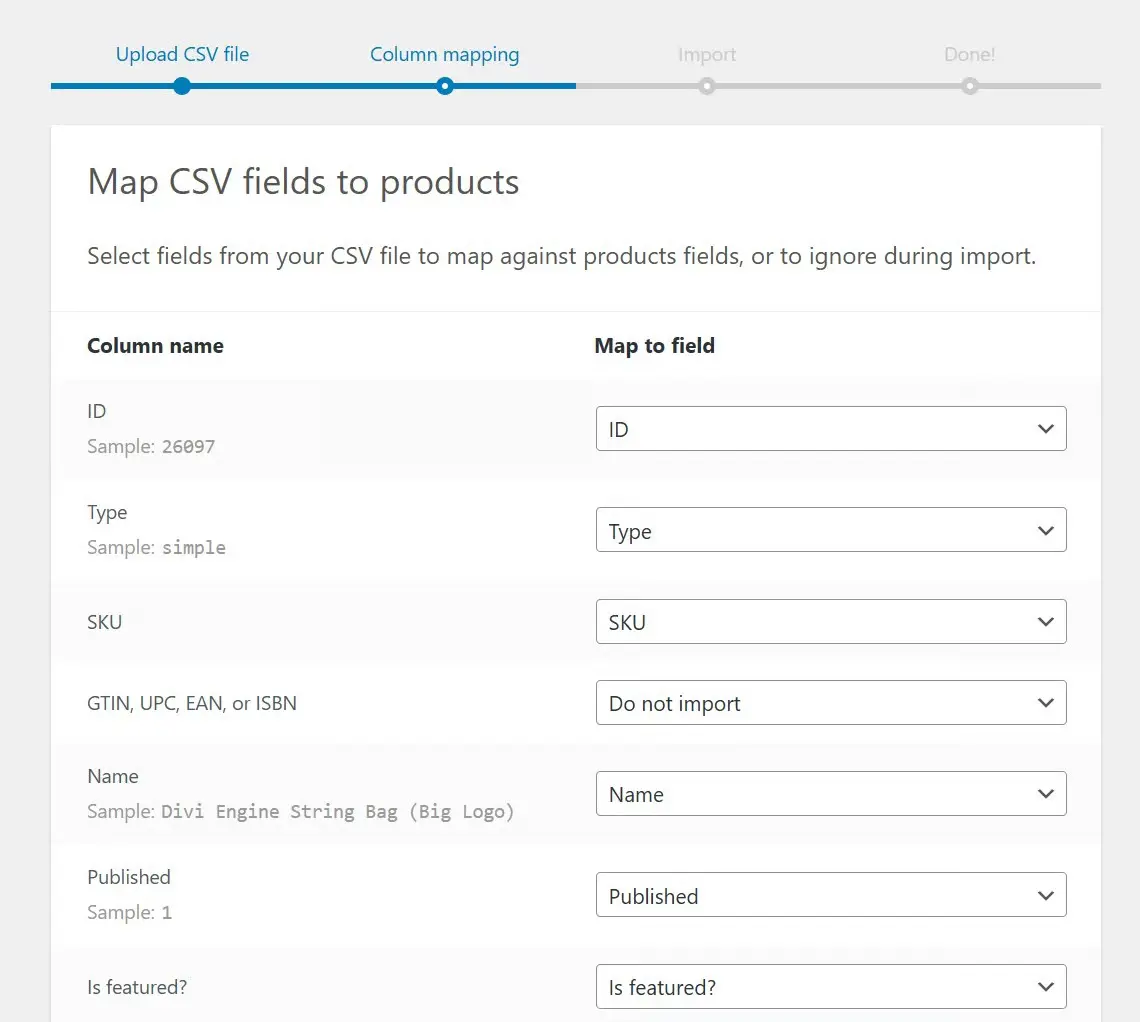
WooCommerce will analyze your CSV and show a mapping interface. Match each CSV column to the corresponding WooCommerce field.
Run the Import
Start importing your products
Click Run the importer to begin importing products. The process may take several minutes for large catalogs.
⚠️ Don't close the browser: Keep the page open until import completes. Closing may corrupt the import.
What happens during import:
- Products are added/updated one by one
- Images are downloaded from URLs
- Categories and tags are created if needed
- Progress bar shows completion status
Review Import Results
Check the import summary
After completion, WooCommerce displays a summary showing successful imports, updates, and any errors encountered.
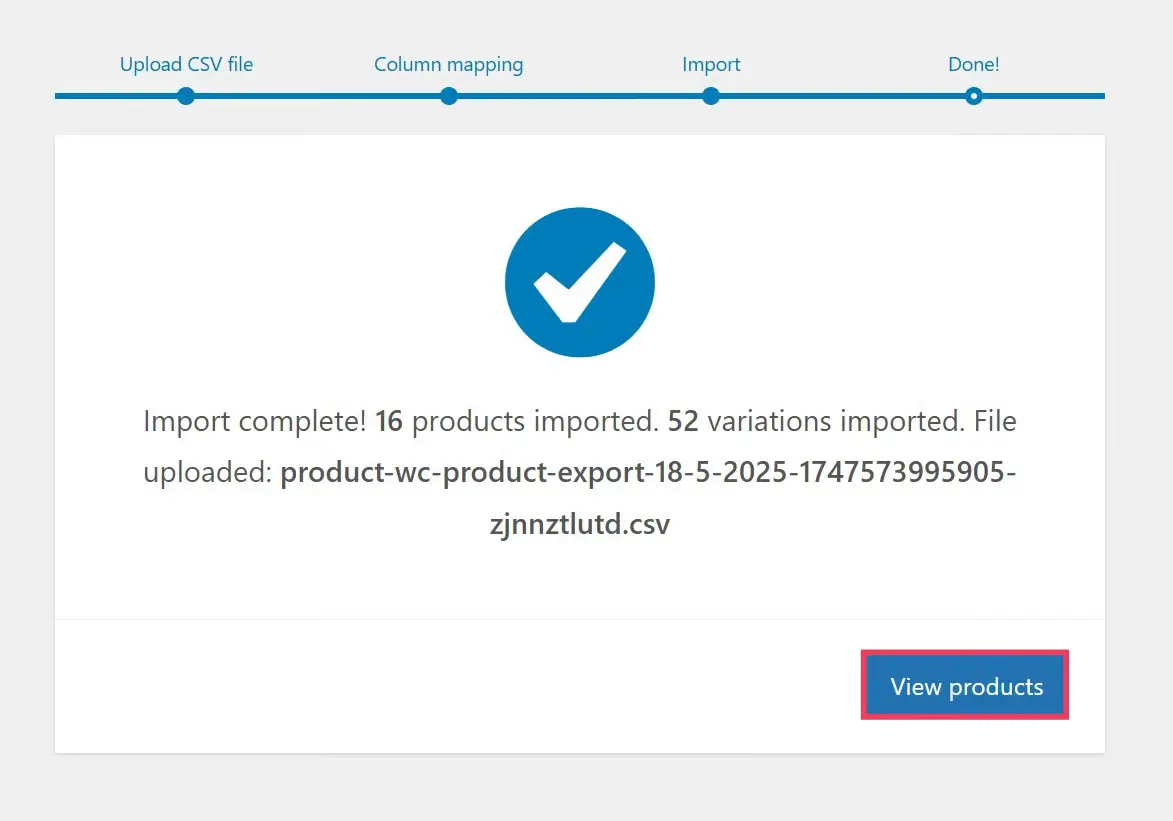
✅ Import Complete!
Click "View Products" to see your imported products. You can now edit titles, descriptions, prices, and other details from the Products page.
Importing Product Variations
(Sizes, Colors & More)
Variable products require special CSV formatting. Here's how to set them up correctly.
Step 1: Create Parent Product
The first row defines the parent product with Type: variable
Step 2: Add Variation Rows
Each variation gets its own row with Type: variation and Parent referencing the parent SKU.
Multiple Attributes (Size + Color)
For products with multiple attributes (e.g., Size AND Color), use Attribute 2 name and Attribute 2 value columns. Example: A shirt with Small/Medium/Large sizes AND Red/Blue/Green colors would need 9 variation rows (3 sizes × 3 colors).
Avoid these common
WooCommerce CSV import errors
Products import but images are missing
Use direct image URLs that end in .jpg, .png, .gif. Test URLs in browser first. Avoid Dropbox/Google Drive share links.
CSV import fails with 'Invalid file' error
Save file as 'CSV UTF-8 (Comma delimited)' in Excel. Use Google Sheets instead to avoid formatting issues.
Product variations not creating properly
Parent product Type must be 'variable'. Each variation must have Type: variation and reference parent SKU.
Existing products not updating
Check 'Update existing products' during upload. Ensure SKU column matches existing product SKUs exactly.
Import times out or crashes
Split large CSV into smaller batches (500-1000 products). Increase PHP memory_limit to 256MB+.
Categories not being created or assigned
Use category names, not IDs. For hierarchies, use >: 'Clothing > Men > Shirts'.
Pro tips for
flawless WooCommerce imports
Follow these best practices to ensure your WooCommerce product imports succeed every time.
Skip the manual work
Generate a perfect WooCommerce CSV in seconds
No need to learn WooCommerce's CSV format, worry about required fields, or debug import errors. ProdSift handles everything for you.
Generate Your WooCommerce CSV FreeFirst 5 products free. No credit card required.
Ready to import products
into your WooCommerce store?
Stop fighting CSV errors. Generate a perfect WooCommerce-ready CSV file in seconds — try it free.
Used by WooCommerce professionals to scrape products in minutes.