Powered by Smartsupp

How to Import Products to Shopify Using CSV Files

A comprehensive guide to importing products into your Shopify store using CSV files. Learn the correct format, avoid common mistakes, and import thousands of products efficiently.

Updated: February 202615 min read

Overview

Importing products to Shopify using CSV files is the fastest way to add or update large product catalogs. Whether you're migrating from another platform, updating inventory, or adding hundreds of new products, CSV import is your most efficient option.

This guide covers everything you need to know about Shopify product imports, including:

  • Complete CSV format requirements and field explanations
  • Step-by-step import process with screenshots
  • Common errors and how to fix them
  • Best practices for successful imports

Before You Begin

Critical: Always Backup Your Data

Before importing, export your current products as a backup. Shopify overwrites products with matching handles, which can result in permanent data loss if not done carefully.

Prerequisites

  • 1
    Shopify Admin Access: You need admin permissions to import products
  • 2
    CSV File: Properly formatted CSV file with product data
  • 3
    Product Images: Images hosted online with accessible URLs (if including images)
  • 4
    File Size: CSV file must be under 15MB (split large files into batches)

Understanding Shopify CSV Format

Shopify uses a specific CSV format for product imports. Each column represents a product field, and each row represents either a product or a product variant.

Required Fields

FieldDescription
HandleUnique product identifier (lowercase, no spaces, use hyphens)
TitleProduct name displayed on your store
Variant PriceProduct price (no currency symbols)
Variant GramsWeight in grams (required, even if 0)

Important CSV Fields Explained

Handle

Example: unique-product-name

Lowercase letters, numbers, hyphens only. No spaces, special characters, or capital letters. Used in product URLs.

Body (HTML)

Example: HTML or plain text

Product description. Can include HTML formatting. Leave blank if no description.

Vendor

Example: Brand Name

Brand or manufacturer name. Must be more than 2 characters if provided.

Type

Example: Apparel

Product category/type. Used for organization and filtering.

Tags

Example: tag1, tag2, tag3

Comma-separated tags. Use quotes if tags contain commas.

Published

Example: TRUE or FALSE

TRUE = published, FALSE = draft. Blank defaults to TRUE.

Option1 Name

Example: Size or Color

First variant option name. Use 'Title' for non-variant products.

Option1 Value

Example: Small or Red

Value for first option. Use 'Default Title' for non-variant products.

Variant SKU

Example: PROD-001

Stock Keeping Unit. Unique identifier for inventory tracking.

Variant Inventory Qty

Example: 100

Stock quantity. Only for single-location stores.

Variant Inventory Policy

Example: deny or continue

deny = can't purchase when out of stock, continue = allow backorders

Image Src

Example: https://example.com/image.jpg

Direct image URL. Shopify downloads and re-uploads images during import.

SEO Title

Example: Custom page title

Page title for search engines. Max 70 characters. Defaults to product title if blank.

SEO Description

Example: Meta description

Meta description for search engines. Max 320 characters.

Pro Tip: Using ProdSift for Perfect CSV Files

Instead of manually creating CSV files, use ProdSift's Shopify Product Extractor to export products from any Shopify store in perfect Shopify CSV format. This ensures all fields are correctly formatted and ready to import.

Step-by-Step Import Guide

1

Access Product Import Page

From your Shopify admin dashboard, navigate to Products in the left sidebar, then click the Import button in the top right corner.
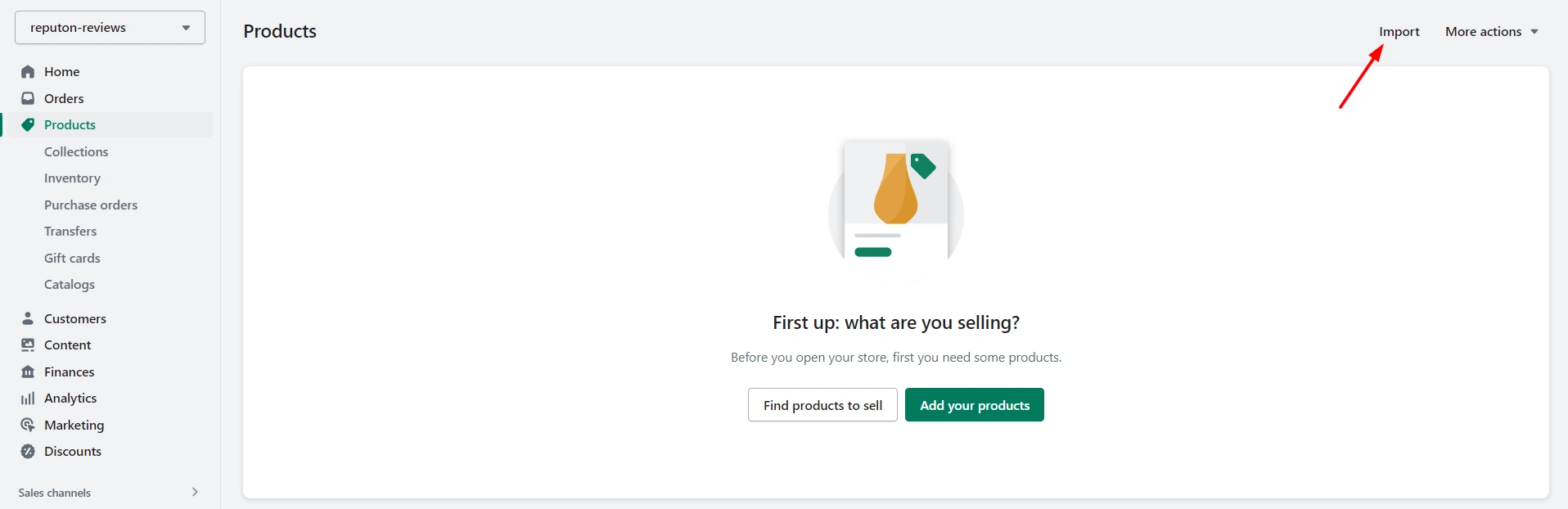
Navigate to Shopify Products page and click Import button

Path: Shopify Admin → Products → Import

2

Upload Your CSV File

Click Add file and select your CSV file. Ensure the file is properly formatted and under 15MB.
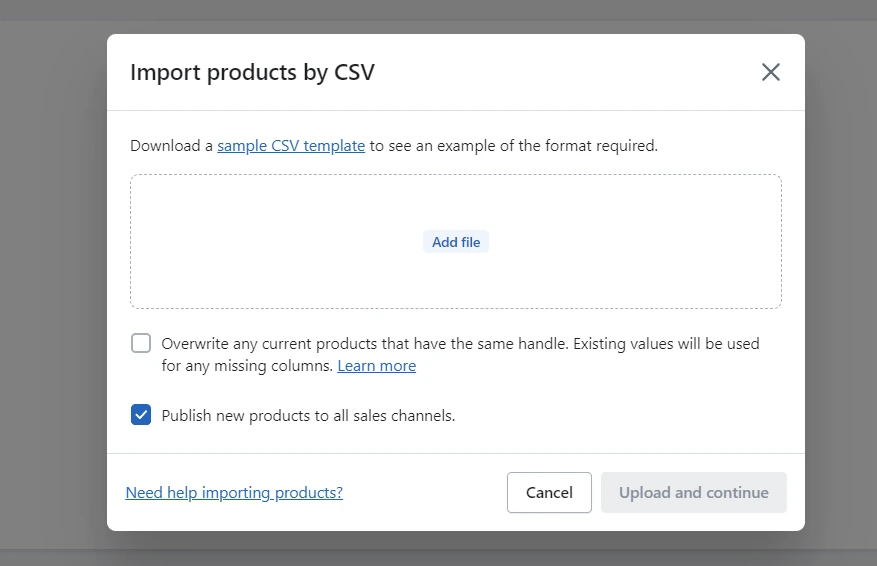
Select your CSV file and click Upload and continue in Shopify
File must be .csv format
Maximum file size: 15MB
Use UTF-8 encoding
3

Configure Import Settings

Choose your import options carefully:

Publish to all sales channels

Checked (default): Products appear on all sales channels (online store, Facebook, Instagram, etc.)

Unchecked: Products only appear on your online store. Manually add to other channels later.

Overwrite products with matching handles

Checked: Updates existing products that have the same handle. All columns in CSV overwrite existing data.

Unchecked: Skips products with matching handles. Only adds new products.

⚠️ Warning: This overwrites ALL data for matching products, including fields not in your CSV. Always backup before using this option.

4

Review and Confirm

Click Upload and continue. Shopify will analyze your file and show you a preview of what will be imported.

Review the summary carefully:

  • • Number of products to be added
  • • Number of products to be updated
  • • Any errors or warnings detected
5

Complete the Import

Click Import products to start the import process.

Shopify products successfully imported - edit title, description, price, and other details

Important: Product imports cannot be cancelled once started. Make sure everything is correct before clicking Import.

You'll receive a confirmation email at your Shopify admin email address when the import completes. After import, you can edit product titles, descriptions, prices, and other details from the Products page.

Common Import Issues & Solutions

Import fails with 'Invalid CSV format'

Common Causes:

  • Missing required column headers
  • Headers spelled incorrectly
  • File saved in wrong encoding

Solutions:

  • Verify all required headers are present: Handle, Title, Variant Price, Variant Grams
  • Check header spelling matches exactly (case-sensitive)
  • Save CSV with UTF-8 encoding (in Excel: CSV UTF-8)
  • Download a sample CSV from Shopify and match the format

Products import but images are missing

Common Causes:

  • Image URLs are not publicly accessible
  • Images hosted on password-protected servers
  • File names contain special characters or spaces
  • Images are too large (over 20MB)

Solutions:

  • Use direct image URLs (e.g., https://example.com/image.jpg)
  • Don't use Dropbox/Google Drive links - use direct hosting
  • Remove spaces and special characters from image filenames
  • Compress images to under 20MB each
  • Test image URLs in browser - they should display immediately

File upload times out or exceeds 15MB limit

Common Causes:

  • Too many products in single CSV
  • Large product descriptions or image URLs

Solutions:

  • Split CSV into multiple files (recommended: 1,000 products per file)
  • Import in batches rather than all at once
  • Remove unnecessary columns to reduce file size
  • Compress line breaks and whitespace in descriptions

Product variants not importing correctly

Common Causes:

  • Missing Option Name or Option Value fields
  • Inconsistent option names across variants
  • Parent product row missing

Solutions:

  • Ensure Option1 Name is the same for all variants of a product
  • First row of product should have Option1 Value = 'Default Title' for simple products
  • For variants, use separate rows with the same Handle
  • Example: Handle 'shirt', Option1 Name 'Size', Option1 Value 'Small', 'Medium', 'Large' on separate rows

Excel corrupts the CSV file

Common Causes:

  • Excel auto-formats numbers and dates
  • Excel removes leading zeros from SKUs
  • Excel changes CSV encoding

Solutions:

  • Use Google Sheets instead of Excel
  • If using Excel, format SKU column as 'Text' before pasting data
  • Save as 'CSV UTF-8 (Comma delimited)' not regular CSV
  • Use a dedicated CSV editor like VS Code or Notepad++

Products overwrite existing data unexpectedly

Common Causes:

  • 'Overwrite products' option was checked
  • Handles match existing products
  • Blank columns overwrite existing data

Solutions:

  • Always export current products as backup before importing
  • Use unique handles for new products
  • If updating, include ALL columns even if unchanged
  • Test with 5-10 products first before full import

Best Practices for Successful Imports

Always Backup First

Export your current products before any import. This creates a safety net if something goes wrong.

Test with Small Batches

Import 5-10 products first to verify your CSV format works correctly before importing thousands.

Use UTF-8 Encoding

Always save CSVs with UTF-8 encoding to prevent character issues with special symbols and international text.

Validate Handles

Ensure handles are unique, lowercase, use hyphens instead of spaces, and contain no special characters.

Host Images Properly

Use direct image URLs from your server or CDN. Avoid Dropbox, Google Drive, or password-protected hosting.

Keep Files Under 15MB

Split large catalogs into multiple CSV files of 1,000-2,000 products each for reliable imports.

Advanced Tips

Importing Product Variants

To import a product with multiple variants (sizes, colors, etc.), create multiple rows with the same Handle but different Option Values:

HandleTitleOption1 NameOption1 ValueVariant Price
t-shirtCool T-ShirtSizeSmall29.99
t-shirtCool T-ShirtSizeMedium29.99
t-shirtCool T-ShirtSizeLarge29.99

Multiple Images Per Product

To add multiple images to a single product, create additional rows with the same Handle but different image URLs. Leave other fields blank except Handle and Image Src:

HandleTitleImage SrcImage Position
sneakersRunning Sneakershttps://example.com/img1.jpg1
sneakershttps://example.com/img2.jpg2
sneakershttps://example.com/img3.jpg3

Migrate from Other Platforms Easily

Migrating from WooCommerce, Magento, or another platform? Use ProdSift to extract products in perfect Shopify CSV format:

  • Extract products from any WooCommerce store
  • Automatic format conversion to Shopify CSV
  • All images, variants, and data included
Learn about WooCommerce to Shopify migration

Frequently Asked Questions

Can I cancel a product import once it's started?

No. Once you click 'Import products', the import cannot be cancelled. This is why it's critical to test with a small batch first and always backup your data before importing.

How many products can I import at once?

Shopify doesn't have a hard limit on the number of products, but your CSV file must be under 15MB. Most stores can import 2,000-5,000 products per CSV file. For larger catalogs, split into multiple files.

Will importing products overwrite my existing products?

Only if you check 'Overwrite products with matching handles' AND the handles in your CSV match existing products. If unchecked, products with matching handles are skipped. Products with unique handles are always added as new.

Why are my product images not importing?

Common reasons: (1) Image URLs aren't publicly accessible, (2) URLs are from Dropbox/Google Drive instead of direct hosting, (3) Images exceed 20MB, (4) URLs contain spaces or special characters. Test URLs in your browser - they should display the image immediately.

Can I import products to specific collections?

Not directly through CSV import. Collections must be created separately in Shopify admin. However, you can use product tags to organize products, then create automated collections based on those tags.

What's the difference between Handle and SKU?

Handle is a unique URL-friendly identifier used in product URLs (e.g., 'blue-t-shirt'). SKU is your inventory tracking code (e.g., 'BLUE-TS-001'). Handles must be unique per product. SKUs should be unique per variant but Shopify doesn't enforce this.

How do I update product prices without changing other data?

Export your products, update only the price columns in the CSV, then reimport with 'Overwrite products with matching handles' checked. IMPORTANT: Include ALL columns from the export, even if unchanged. Missing columns will overwrite existing data as blank.

Can I import products in draft status?

Yes. Set the 'Published' column to FALSE for any products you want to import as drafts. They won't appear on your store until you manually publish them.

What happens if my CSV has errors?

Shopify validates your CSV before importing. If there are critical errors (missing required fields, invalid format), the entire import fails and no products are added. Fix the errors and try again. Minor issues might import partially - check your email for details.

How long does import take?

Import time varies by file size and server load. Typically: 100 products = 1-2 minutes, 1,000 products = 5-10 minutes, 5,000+ products = 15-30 minutes. You'll receive an email when complete.

Need Help Importing Products?

ProdSift makes it easy to extract products from any Shopify or WooCommerce store in perfect CSV format, ready to import. Save hours of manual work and avoid formatting errors.