Manually adding products one by one kills your margins as a store builder. Here are the fastest methods to populate a full WooCommerce catalog — from CSV imports to instant extraction — so you can deliver client stores in hours, not days.
Key Takeaways
- Manually adding products one by one is the #1 time killer for WooCommerce store builders
- WooCommerce's built-in CSV importer can load hundreds of products in minutes — if your CSV is formatted correctly
- ProdSift can extract a full product catalog from any Shopify or WooCommerce store and give you an import-ready CSV instantly
- Migrating a client from Shopify to WooCommerce takes under an hour with the right workflow
- Supplier CSVs almost always need column remapping before WooCommerce will accept them
If you build WooCommerce stores for clients, you already know the grind: the store is set up, the theme is installed, the plugins are configured — and now you need to add products to a WooCommerce store that's staring back at you with 300 empty slots. One. By. One.
That's not a business. That's data entry. And it's completely avoidable.
In this guide, we'll walk through every fast method for adding products to a WooCommerce store in bulk — including how to use WooCommerce's native CSV importer, how to pull an entire product catalog from an existing store in seconds using ProdSift, how to handle Shopify-to-WooCommerce migrations, and how to deal with messy supplier spreadsheets. By the end, you'll have a repeatable workflow that saves you hours on every build.
The problem with adding products to WooCommerce manually
WooCommerce's default "Add Product" screen is fine for a store owner adding 5 products a week. It's completely unsuitable for a store builder delivering a 200-product catalog to a client on Friday.
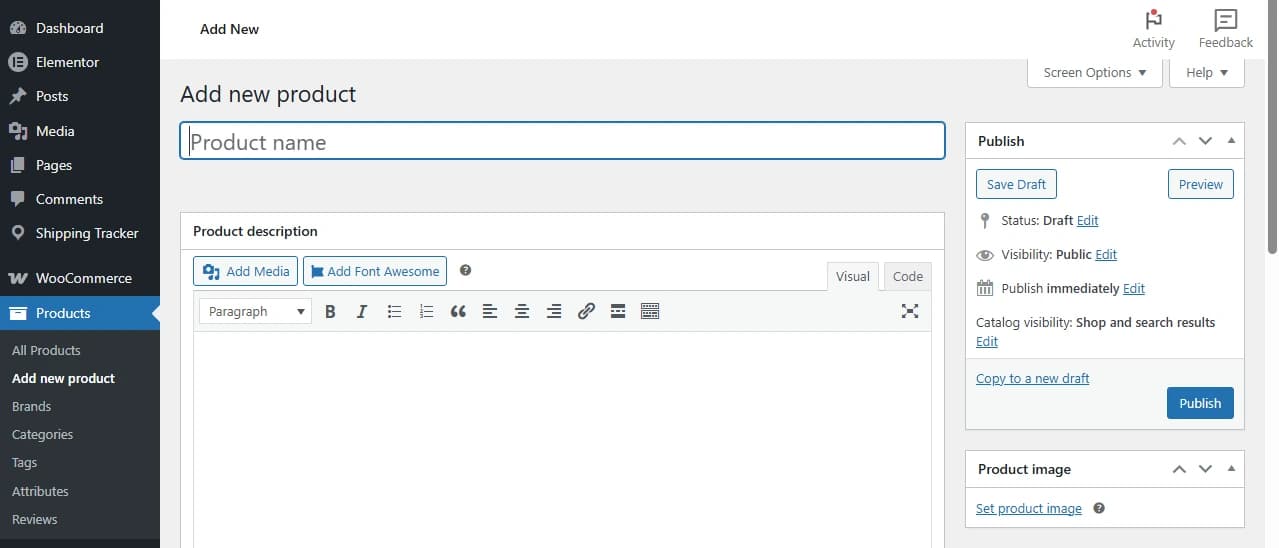
Here's the math: an experienced WooCommerce builder can manually input a product — title, description, price, categories, images, variants, SKU — in about 4–6 minutes. At 200 products, that's 13–20 hours of pure data entry. At your hourly rate, that's either a huge invoice your client won't accept, or a huge loss you're eating.
The good news is that WooCommerce was built to handle bulk imports. The platform has a native CSV importer, supports third-party migration plugins, and plays nicely with properly formatted spreadsheets. The key is knowing how to get your products into the right format quickly — and that's exactly what the rest of this guide covers.
Method 1: WooCommerce built-in CSV importer
WooCommerce has a built-in product importer that ships with every installation — no plugin required. It reads a CSV file and creates products in bulk, handling titles, descriptions, prices, categories, images, variants, SKUs, and stock.
This is the foundation of every fast WooCommerce build. If you have a properly formatted CSV, you can load a full catalog in minutes.
Step-by-step: importing products via CSV
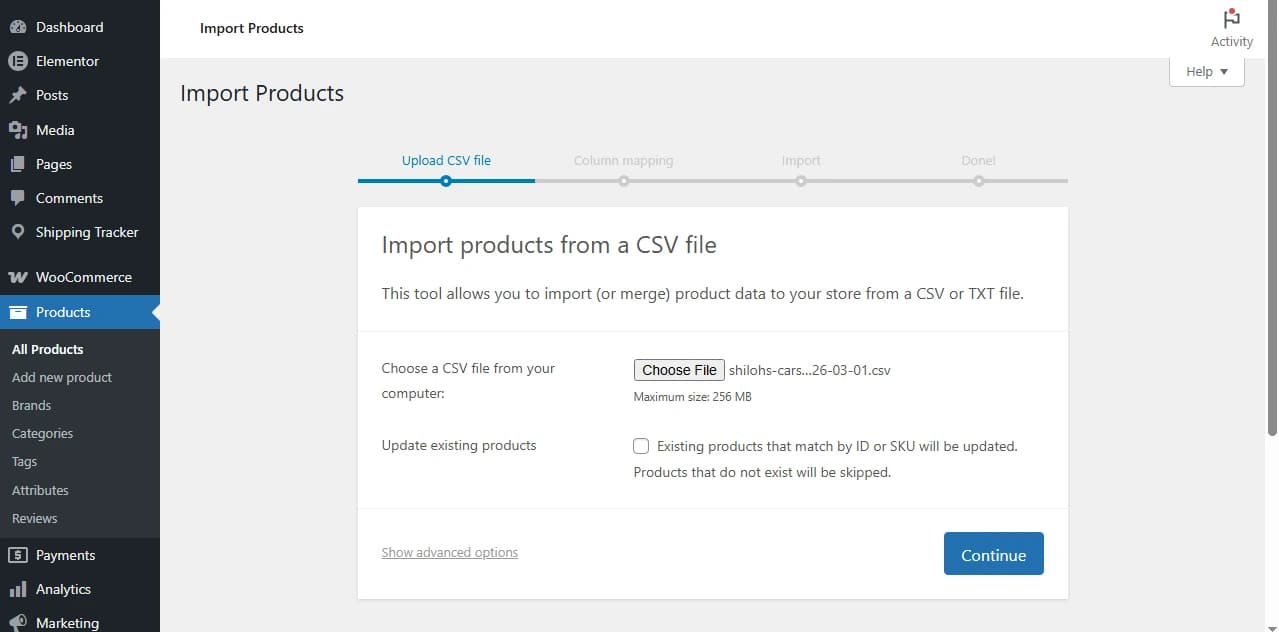
- Go to Products → Import — in your WordPress dashboard, navigate to WooCommerce → Products → Import
- Upload your CSV file — click "Choose File", select your CSV, then click "Continue"
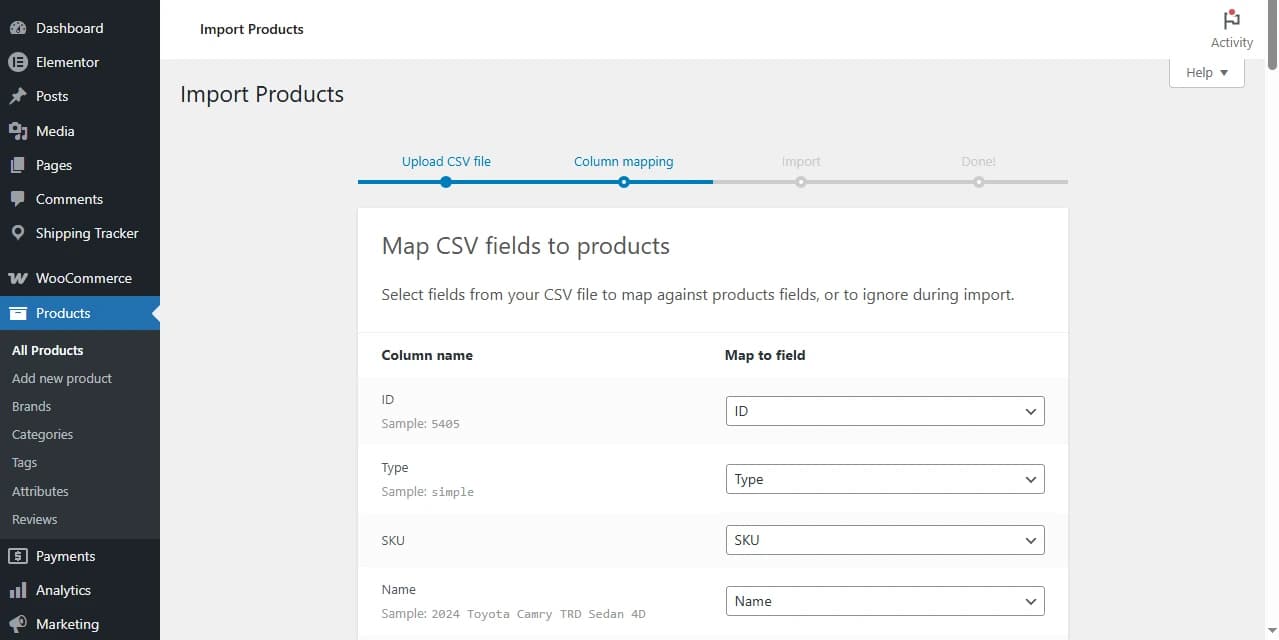
- Map your columns — WooCommerce will auto-detect standard column names. Review and fix any columns it didn't recognise
- Run the importer — click "Run the Importer". WooCommerce shows a progress bar and summary when done
- Review imported products — check a handful of products manually to confirm images, variants, and pricing loaded correctly
⚠️ Common issue: If your CSV wasn't exported from WooCommerce originally, the column names probably won't match what WooCommerce expects. You'll need to either rename the columns in your spreadsheet or use the column mapper carefully. See the CSV format section below for the exact column names WooCommerce needs.
What the native importer handles well
The native WooCommerce CSV importer handles simple and variable products reliably. It can import product images from external URLs (WooCommerce will sideload them automatically), handle product categories and tags, set stock quantities, and support custom attributes and variations.
Where it struggles: very large imports (1,000+ products can time out on shared hosting), products with complex metafields, and importing from non-standard formats without remapping. For large catalogs, consider increasing your PHP timeout limit or using a staging environment first.
Method 2: Extract products from any store with ProdSift
This is the method most store builders don't know about — and once they discover it, it becomes the first thing they do on every new project.
ProdSift extracts the complete product catalog from any public Shopify or WooCommerce store and gives you a clean, import-ready CSV. No API key. No plugin installation. No store credentials. Just a URL.
- Paste the URL of any Shopify or WooCommerce store
- ProdSift fetches the full product catalog — titles, prices, variants, images, SKUs, inventory
- Download as a WooCommerce-ready CSV and import directly
Skip the data entry entirely
Paste any Shopify or WooCommerce store URL and get a WooCommerce-ready CSV in seconds. First 5 products free — no credit card.
Try it freeWhen to use this method
ProdSift is the fastest path in three specific scenarios that come up constantly for store builders:
- Your client is migrating from another platform — they have an existing Shopify or WooCommerce store and want to move to WooCommerce. Instead of manually re-entering every product, extract the catalog and import it in one go.
- You're building a dropshipping or reseller store — your client wants to sell products from a supplier's store. Extract the supplier's catalog, clean up the descriptions, add your markup, and import. Done.
- You're doing competitor analysis for your client — pull a competitor's product list to understand their catalog depth, pricing strategy, and product categories. Bring the data directly into a spreadsheet for analysis.
Method 3: Migrate from Shopify to WooCommerce
Shopify-to-WooCommerce migration is one of the most common jobs that lands in a WordPress builder's inbox. A client wants to escape Shopify's monthly fees, move to a self-hosted solution, or consolidate everything under WordPress. They have hundreds of products and they need them all moved over without losing data.
The old way: export from Shopify, wrestle with the CSV format differences, manually remap columns in Excel, import into WooCommerce, fix the broken images. Half a day minimum.
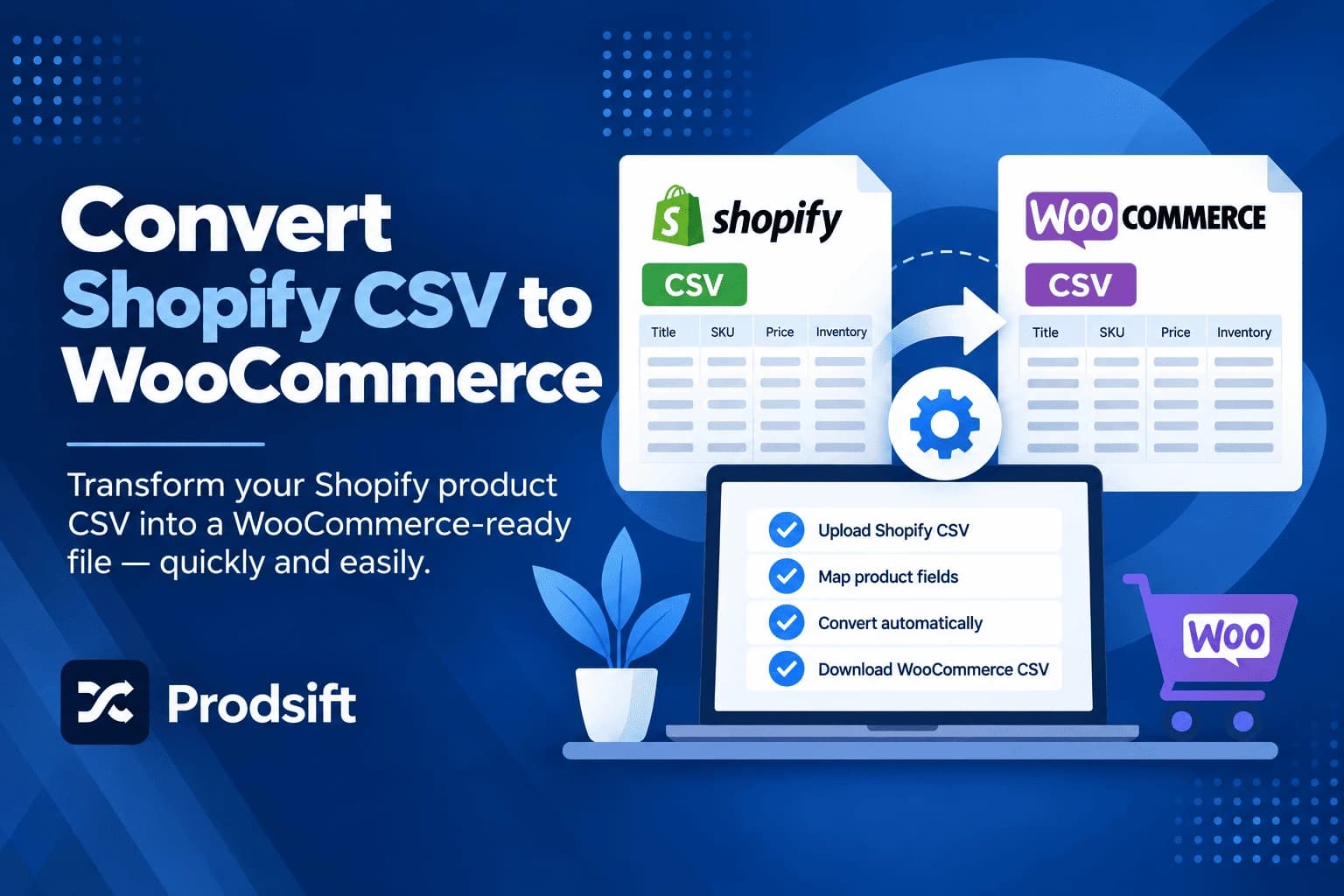
The fast way: use ProdSift to extract the Shopify store directly and get a WooCommerce-formatted CSV. No format conversion required.
Shopify vs WooCommerce CSV: the key differences
| Data Field | Shopify Column | WooCommerce Column |
|---|---|---|
| Product name | Title | Name |
| Description | Body (HTML) | Description |
| Price | Variant Price | Regular price |
| SKU | Variant SKU | SKU |
| Stock | Variant Inventory Qty | Stock |
| Image URL | Image Src | Images |
| Categories | Type | Categories |
This is exactly the kind of remapping that eats your time. ProdSift handles this automatically — the CSV it exports is already formatted for WooCommerce, so you can import without touching a spreadsheet.
Pro tip: After importing, always check that product images loaded correctly. WooCommerce sideloads images from URLs during import — if the source store's images are on a CDN with hotlink protection, some may fail to import. In that case, you'll need to re-upload the images manually or use a batch image downloader first.
Method 4: Supplier CSV with column mapping
A lot of WooCommerce builds start with a supplier spreadsheet. Your client hands you a 500-row Excel file with product names, descriptions, prices, and images — and it looks nothing like what WooCommerce expects.
This is actually fine, because WooCommerce's column mapper lets you match your spreadsheet's columns to WooCommerce fields during the import. The trick is preparing your file correctly before you start.
Preparing a supplier CSV for WooCommerce
- Save as CSV (UTF-8) — open the supplier file in Excel or Google Sheets. Save/export as CSV with UTF-8 encoding to avoid character issues with special characters.
- Add a "Type" column — WooCommerce needs to know the product type. Add a column called "Type" with the value "simple" for standard products or "variable" for products with size/colour options.
- Format image URLs — if images are listed as file names rather than full URLs, you'll need to either host the images and update the links, or use a placeholder and upload images manually after import.
- Add a "Published" column — add a "Published" column with value "1" so products go live after import. Without this they may import as drafts.
- Run the importer and use the mapper — when WooCommerce shows you the column mapping screen, match each of your column names to the correct WooCommerce field. Save the mapping for future imports.
WooCommerce CSV format: what you need to know
WooCommerce has a specific CSV format that its importer expects. If you're creating or cleaning up a CSV manually, here are the core columns and what they do:
| Column Name | What it does | Required? |
|---|---|---|
| Name | Product title shown in the store | Yes |
| Type | simple, variable, grouped, external | Yes |
| SKU | Unique product identifier | Recommended |
| Regular price | The selling price | Yes (for simple) |
| Description | Long product description (HTML allowed) | No |
| Short description | Short summary shown near the add-to-cart button | No |
| Images | Full URL(s) of product images, pipe-separated for multiple | No |
| Categories | Category names, separated by > for hierarchy | No |
| Tags | Product tags, comma-separated | No |
| Stock | Inventory quantity | No |
| In stock? | 1 for in stock, 0 for out of stock | No |
| Published | 1 to publish, 0 for draft | No |
| Attribute 1 name | e.g. Color, Size — for variable products | No |
| Attribute 1 value(s) | e.g. Red | Blue | Green | No |
The easiest way to get a perfectly formatted template is to create one product manually in WooCommerce and then export it. WooCommerce will generate a CSV with all the correct column names that you can use as your template for the full import.
Pro tips for store builders
After doing dozens of WooCommerce builds, here are the patterns that separate fast builders from slow ones:
- 🗂️ Keep a template CSV on hand — maintain a clean WooCommerce CSV template with all the correct column headers. When you get a supplier spreadsheet, open both in Google Sheets and copy the data into your template. This alone saves 30 minutes of column mapping per project.
- 🔁 Always do a test import first — before importing 500 products, import 5. Verify that product types, images, categories, and variants all load correctly. Fixing issues on 5 products is easy. Fixing them on 500 after the fact is painful.
- ⚡ Use ProdSift before you start cleaning a CSV — if your client's products exist on any live Shopify or WooCommerce store, extract it with ProdSift first. You'll often get a cleaner, more complete CSV than anything you can wrangle from a supplier spreadsheet.
- 🖼️ Host images before importing large catalogs — WooCommerce sideloads images during import, which is slow and can time out on shared hosting. For large catalogs, upload images to your media library first or host them on a fast CDN and reference those URLs in your CSV.
- 📊 Add a margin column to your working spreadsheet — before importing, add a column that calculates your client's margin at the planned retail price. You'll often catch pricing errors before they go live.
- 🔒 Import to staging first — run all product imports on a staging environment before pushing to production. This protects your client's live store and gives you a chance to test the full import without consequences.
FAQ
How many products can WooCommerce import at once?
There's no hard limit, but on shared hosting, imports of more than 500 products can time out. If you're on shared hosting, import in batches of 200–300. On VPS or dedicated hosting, you can typically import thousands at once.
Can I update existing products with a CSV import?
Yes. If your CSV includes a SKU or ID that matches an existing product, WooCommerce will update it rather than create a duplicate. This is useful for bulk price updates or description edits.
Can I import variable products (with size/colour options) via CSV?
Yes, but it's the most complex part of WooCommerce CSV imports. Each variation needs its own row in the CSV, linked to the parent product via the parent SKU. WooCommerce's documentation has a sample variable product CSV that's worth studying before your first attempt.
What if my product images don't load after import?
WooCommerce sideloads images from the URLs in your CSV. If images fail, the most common causes are: the image URL is broken or 404, the source server blocks hotlinking, or the import timed out before all images were fetched. Re-run the import or upload the images manually.
Can ProdSift extract products from any WooCommerce store?
ProdSift works on any publicly accessible WooCommerce or Shopify store. If the store's product catalog is visible to the public, ProdSift can extract it. Private or password-protected stores are not accessible.
Is it legal to extract products from a competitor's store?
Publicly visible product information is generally accessible, but you should always check the site's terms of service and applicable laws in your region before using extracted data commercially. ProdSift is designed for legitimate use cases like store migration, competitor research, and dropshipping store setup.
What's the difference between WooCommerce's importer and a plugin like WP All Import?
WooCommerce's built-in importer handles standard product data and is sufficient for most builds. WP All Import is more powerful for complex scenarios — like importing from XML feeds, scheduling recurring imports, or handling very custom product data — but costs $99+/year and has a steeper learning curve.
Need to populate a WooCommerce store right now?
The fastest way to add products to a WooCommerce store is to extract them from one that already exists. Free for your first 5 products — no credit card, no setup.
Extract products free with ProdSift