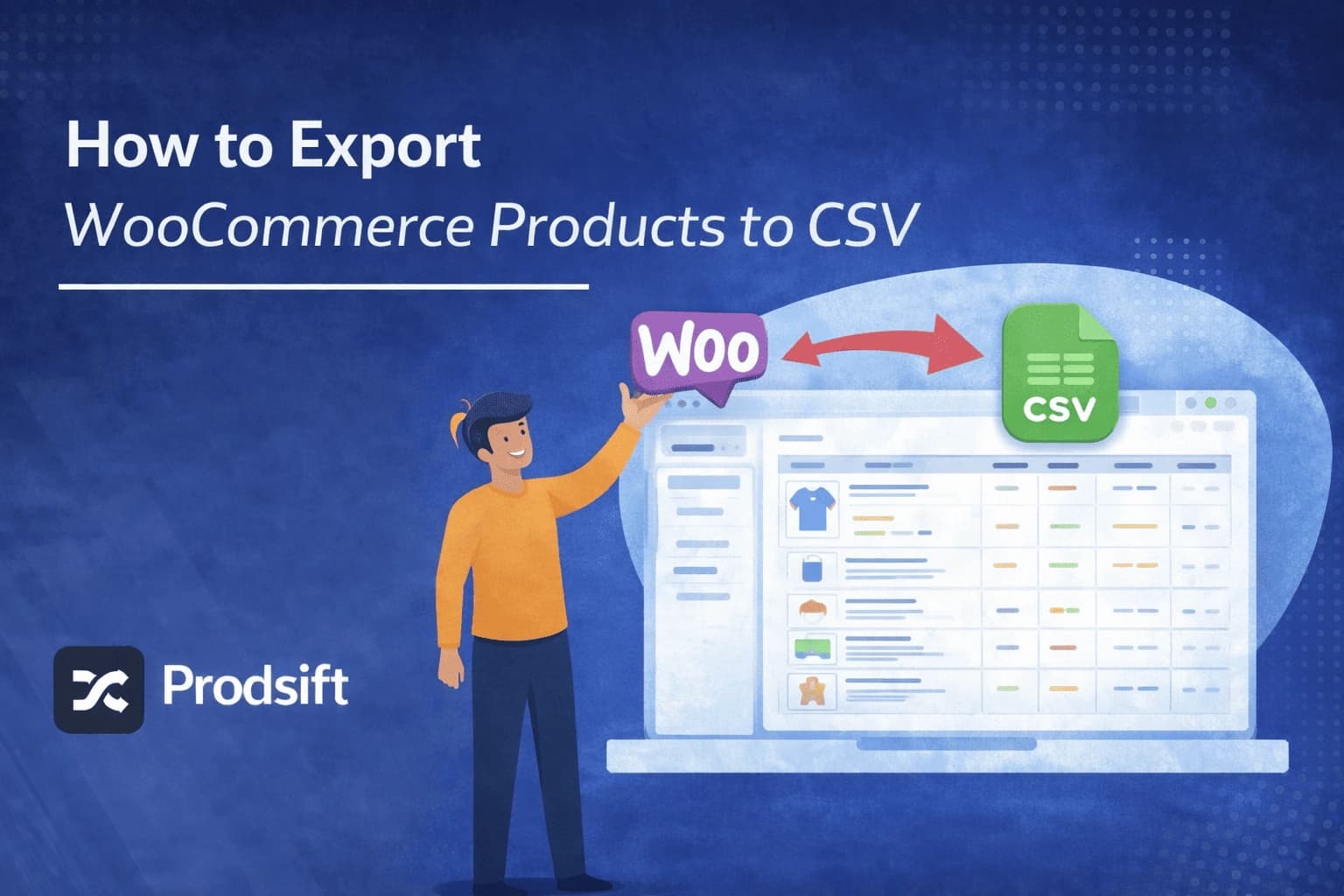
Exporting WooCommerce products to CSV is built into every WooCommerce installation — no plugin needed. This step-by-step guide covers the native export method, how to filter by category or product type, what each column means, common issues, and faster alternatives for bulk and cross-platform use cases.
📥 Quick answer: To export WooCommerce products to CSV: go to your WordPress dashboard → WooCommerce → Products → Export, choose which columns to include and optionally filter by category or product type, then click Generate CSV. The file downloads immediately to your browser. No plugin is required — this feature is built into WooCommerce by default.
Key Takeaways
- WooCommerce includes a built-in product export tool — no plugin required. Find it under WooCommerce → Products → Export
- You can export all products or filter by category, product type, or stock status before generating the CSV
- Variable products export with one row per variation, each linked to the parent product by a shared SKU
- WooCommerce's CSV format is not compatible with Shopify's importer without column remapping — the field names are completely different
- For exporting from a WooCommerce store you don't own, ProdSift extracts the full product catalog from any public store URL without credentials
Whether you're migrating your store to a new platform, creating a backup before a major update, doing a bulk price edit in a spreadsheet, or handing catalog data off to a supplier — exporting your WooCommerce products to CSV is the foundation of all of it. This guide covers the entire process end to end: what to click, what every option means, how variable products work in the export, and what to do with the file once you have it.
What is a WooCommerce CSV export?
A WooCommerce CSV export is a downloadable spreadsheet file containing your store's product data — including titles, descriptions, prices, SKUs, stock levels, images, categories, tags, and variant attributes — structured in WooCommerce's standard column format. The file can be imported back into WooCommerce, migrated to another platform, or opened in any spreadsheet application for bulk editing.
WooCommerce has included a native product export tool since version 3.1. It requires no additional plugins and is available to any WordPress user with the manage_woocommerce capability — typically shop managers and administrators.
Common reasons to export WooCommerce products
- Platform migration — moving from WooCommerce to Shopify, BigCommerce, or another platform. The CSV is the starting point for any catalog transfer.
- Catalog backup — creating an offline copy of your product data before a major WooCommerce update, theme change, or plugin migration.
- Bulk editing — opening the CSV in Google Sheets or Excel to update prices, descriptions, or stock levels across hundreds of products at once, then re-importing.
- Supplier or client handoff — sharing your product catalog with a manufacturer, distributor, or client in a portable, universally readable format.
- Data analysis — pulling catalog data into a spreadsheet or BI tool to analyse pricing strategy, inventory distribution, or category structure.
How to export WooCommerce products to CSV (step-by-step)
The following steps work on any WooCommerce store running version 3.1 or later, which covers virtually all active installs in 2026.
- Log into your WordPress admin dashboard — navigate to yourstore.com/wp-admin and log in with a user account that has Shop Manager or Administrator privileges.
- Go to WooCommerce → Products — in the left-hand sidebar, click WooCommerce, then click Products from the submenu. This opens your full product list.
- Click the "Export" button — at the top of the Products screen, next to the "Add New" button, click Export. This opens the product export configuration panel.
- Choose which columns to include — by default, all available columns are selected. You can deselect columns you don't need to keep the file smaller. For most use cases, leave everything checked.
- Apply filters (optional) — you can filter by product type (simple, variable, grouped, external), category, and stock status. Leave all filters blank to export your entire catalog.
- Click "Generate CSV" — WooCommerce builds the export file and your browser downloads it automatically. For large catalogs, this may take up to a minute.
Where is the Export button in WooCommerce? If you don't see an Export button on your Products screen, check that you're on the correct screen (WooCommerce → Products, not Posts or Pages), and that your account has Shop Manager or Administrator role. The Export feature was added in WooCommerce 3.1 — if you're on an older version, update WooCommerce first.
Export options explained
The WooCommerce export panel has three configuration sections. Understanding each one prevents you from accidentally exporting incomplete data.
Which columns to export
This dropdown lets you select or deselect specific data columns. The default is all columns selected. Unless you have a reason to reduce the file size, always export all columns — you can ignore the ones you don't need when you open the file, but you can't recover data you chose not to export.
Which product types to export
WooCommerce supports four core product types, each of which can be exported individually or together:
| Product type | What it is |
|---|---|
| Simple | A single product with no variations — one SKU, one price |
| Variable | A product with multiple variants (e.g. size, colour) — each variant is a separate row in the export |
| Grouped | A collection of simple products displayed together on a single page |
| External / Affiliate | A product that links out to an external URL for purchase |
Export custom meta
The Export custom meta checkbox includes custom field data stored in product post meta. This is useful if your products have additional data from plugins — though not all custom meta formats well in CSV, so review the output before relying on this data.
WooCommerce CSV columns: complete reference
WooCommerce's CSV export uses specific column names that must be preserved exactly if you plan to re-import the file. Here are the core columns and what they contain:
| Column name | What it contains | Notes |
|---|---|---|
| ID | WooCommerce internal product ID | Used for updates on re-import |
| Type | simple, variable, variation, grouped, external | Required for import |
| SKU | Your stock-keeping unit identifier | Used for deduplication on re-import |
| Name | Product title | Required |
| Published | 1 = published, 0 = draft, -1 = private | |
| Description | Long product description (HTML allowed) | |
| Short description | Appears below the product title | |
| Regular price | Standard selling price | Required for simple products |
| Sale price | Discounted price (leave blank if no active sale) | |
| Stock | Current inventory quantity | |
| In stock? | 1 = in stock, 0 = out of stock | |
| Images | Full image URLs, pipe-separated for multiple | WooCommerce sideloads on import |
| Categories | Category names, nested with > for hierarchy | e.g. Clothing > T-Shirts |
| Tags | Comma-separated tag names | |
| Weight (kg) | Product weight | |
| Tax status | taxable, shipping, none | |
| Tax class | Tax class slug | |
| Attribute 1 name | e.g. Color, Size | For variable products |
| Attribute 1 value(s) | e.g. Red | Blue | Green | Pipe-separated values |
| Parent | ID or SKU of parent product | For variation rows only |
Pro tip: If you plan to use your CSV as a template for bulk imports, create one test product of each type (simple, variable) manually in WooCommerce and export it. You'll get a perfectly formatted example file with all column names in place to use as your reference.
How to export WooCommerce products by category or product type
WooCommerce's export tool supports filtering before generation, so you can export a targeted subset of your catalog rather than the entire store.
Export by category
On the export panel, open the Which category to export dropdown and select one or more categories. Only products assigned to those categories will appear in the generated CSV. Products in subcategories are included if you select a parent category.
Export by product type
Use the Which product type to export dropdown to limit the export to simple products, variable products, grouped products, or external products. This is especially useful when you want to export only your variable products for variant editing, or only your simple products for a price update.
Can I filter by stock status or date?
WooCommerce's native export does not offer date filtering or stock-status filtering in the UI. If you need these filters, the workaround is to filter your product list in the Products admin screen first (using the Filters button), then export from there — though in practice the export panel doesn't respect the current product list filter in all versions. For more advanced filtering, a plugin like WP All Export adds granular filter controls.
Exporting variable products and variants
Variable products export as multiple rows in WooCommerce's CSV format. The first row contains the parent product data (title, description, categories, images) with Type set to variable. Each variation then gets its own row with Type set to variation, linked to the parent via the Parent column which contains the parent product's ID or SKU.
A t-shirt with Small, Medium, and Large variants would produce four rows in the export: one variable row for the parent product and three variation rows, one for each size.
| ID | Type | Name | SKU | Parent | Attribute 1 value(s) |
|---|---|---|---|---|---|
| 101 | variable | Classic Tee | TEE-001 | — | Small | Medium | Large |
| 102 | variation | — | TEE-001-SM | id:101 | Small |
| 103 | variation | — | TEE-001-MD | id:101 | Medium |
| 104 | variation | — | TEE-001-LG | id:101 | Large |
The Parent column links each variation row to its parent product using id:101 syntax. Never delete or reorder variation rows when editing a WooCommerce CSV.
⚠️ Critical: When editing a WooCommerce CSV in a spreadsheet, never sort by any column — this separates variation rows from their parent rows, breaking the Parent reference and causing variations to import as orphaned products. Use Find & Replace to locate specific products instead.
Exporting WooCommerce products to Shopify
If you're migrating from WooCommerce to Shopify, you cannot import a WooCommerce CSV directly into Shopify — the two platforms use entirely different column names and product structures. Shopify's importer expects its own specific format with columns like Title, Body (HTML), and Variant Price — none of which match WooCommerce's output.
| Field | WooCommerce column | Shopify column |
|---|---|---|
| Product name | Name | Title |
| Description | Description | Body (HTML) |
| Regular price | Regular price | Variant Price |
| SKU | SKU | Variant SKU |
| Stock quantity | Stock | Variant Inventory Qty |
| Images | Images | Image Src |
| Categories | Categories | Type |
| Tags | Tags | Tags |
You have two options for handling the WooCommerce → Shopify migration. The manual path: export from WooCommerce, open the CSV in Google Sheets, and rename every column to its Shopify equivalent — typically a 30–45 minute job that's prone to human error. The fast path: use ProdSift to extract directly from your WooCommerce store and download a Shopify-formatted CSV, bypassing the remapping entirely.
For a complete walkthrough of the migration process, see our guide on WooCommerce to Shopify migration.
How to export products from a WooCommerce store you don't own
WooCommerce's built-in export requires admin access to the WordPress dashboard. If you need product data from a WooCommerce store where you don't have backend credentials — a competitor's store, a supplier's catalog, or a client's store before they've granted you access — the native export tool won't help.
ProdSift is built for exactly this use case. It extracts the complete product catalog from any publicly accessible WooCommerce or Shopify store — titles, descriptions, prices, variants, images, SKUs — and delivers it as a clean, import-ready CSV. No API keys, no credentials, no plugin installation required.
- Paste the URL of any public WooCommerce or Shopify store
- ProdSift extracts the full product catalog instantly
- Download a clean CSV — ready to import into WooCommerce or Shopify
Extract any WooCommerce store with ProdSift
No admin access needed. Paste a store URL and get a clean, import-ready CSV in seconds. First 5 products free — no credit card.
Try it freeWhat to do with your CSV after exporting
Re-importing into WooCommerce
To re-import a modified WooCommerce CSV, go to WooCommerce → Products → Import, upload your file, and use the column mapper to confirm field assignments. If your CSV was exported from WooCommerce and the column names are unchanged, the mapper will auto-detect everything. WooCommerce matches existing products by ID or SKU and updates them rather than creating duplicates — provided those values are intact.
Bulk price or description updates
One of the most valuable uses of a WooCommerce CSV export is batch editing in a spreadsheet. Open the file in Google Sheets (not Excel — see the note below), make your changes to the relevant columns, and re-import. WooCommerce will update all matched products in one operation rather than requiring you to edit each one individually in the admin.
⚠️ Excel warning: Microsoft Excel will silently auto-format numeric strings — long product IDs, barcodes, and leading-zero SKUs can be converted to scientific notation or have leading zeros stripped when you open a CSV. Always use Google Sheets or import via Excel's Data → From Text/CSV wizard with all columns set to Text format.
Using the export as a migration template
If you're migrating to a new WooCommerce store — on a new host, a new domain, or a fresh WordPress install — your exported CSV is the complete catalog transfer vehicle. Import it into the new WooCommerce installation to recreate your entire product catalog without manual re-entry. Categories and tags referenced in the CSV are created automatically if they don't already exist.
Common WooCommerce export issues and fixes
🔧 Export button is missing
Confirm you're on WooCommerce → Products (not the WordPress Posts screen). Confirm your account role is Shop Manager or Administrator. If on WooCommerce below version 3.1, update WooCommerce first.
🔧 Export generates an empty or very small CSV
Check that your product filters haven't accidentally excluded everything. If you filtered by category or product type, verify those filters are set correctly. Also check that your store actually has published products — drafts are excluded by default.
🔧 Images are missing after re-importing the CSV
WooCommerce sideloads images from the URLs in the CSV during import. If the URLs are no longer accessible (e.g. the old store was closed or images were deleted), the images will fail to import. Ensure image URLs in the CSV are still live before importing.
🔧 Variations imported as separate products instead of variants
The Parent column in your CSV was likely cleared or corrupted during editing. Each variation row needs its Parent value set to id:[parent_ID] or the parent product's SKU. Check the variation rows and restore the Parent values.
🔧 Export times out or never completes on large catalogs
Large catalogs on shared hosting can time out during export generation. Try exporting in smaller batches by filtering by category or product type. Alternatively, increase your PHP max_execution_time limit in wp-config.php or ask your host to do so.
🔧 Special characters appear as garbled text in the CSV
This is a character encoding issue. The CSV was saved or opened without UTF-8 encoding. In Google Sheets, import via File → Import and explicitly select UTF-8 encoding. In Excel, use the Data → From Text/CSV import path and set encoding to 65001 (UTF-8).
Frequently asked questions
How do I export WooCommerce products to CSV?
Go to your WordPress dashboard, navigate to WooCommerce → Products, and click the Export button at the top of the page. Choose your columns and any filters, then click Generate CSV. The file downloads to your browser immediately. No plugin is required.
Does WooCommerce have a built-in CSV export feature?
Yes. WooCommerce has included a native product export tool since version 3.1. It is available under WooCommerce → Products → Export and supports exporting all product types, with optional column and category filters.
Can I export WooCommerce products without a plugin?
Yes. The WooCommerce product exporter is built into the core WooCommerce plugin. You do not need any additional plugins to export a standard product CSV. Plugins like WP All Export are only necessary if you need advanced filtering, scheduling, or custom output formats.
How do I export WooCommerce products by category?
On the WooCommerce export screen (WooCommerce → Products → Export), open the "Which category to export" dropdown and select one or more categories. Only products assigned to those categories will be included in the generated CSV.
How are variable products exported in WooCommerce?
Variable products export as multiple rows. The first row is the parent product (Type: variable) containing the title, description, and shared attributes. Each variation exports as its own row (Type: variation) with its specific price, SKU, and attribute values, linked to the parent via the Parent column.
Can I import a WooCommerce CSV into Shopify?
Not directly. WooCommerce and Shopify use different CSV column names and structures. You need to remap the WooCommerce column names (e.g. "Name" → "Title", "Description" → "Body (HTML)", "Regular price" → "Variant Price") before Shopify will accept the file. ProdSift can extract your WooCommerce store and output a Shopify-formatted CSV automatically.
How do I export products from a WooCommerce store I don't have access to?
WooCommerce's native export requires admin access. To extract product data from a WooCommerce store you don't own, use ProdSift — it can extract the full product catalog from any publicly accessible WooCommerce store by URL, with no credentials or plugin installation required.
Does the WooCommerce export include product images?
Yes. The CSV export includes the full URLs of all product images. The actual image files are not embedded in the CSV — instead, WooCommerce (or any platform importing the file) fetches the images from those URLs during import. If the image URLs become unavailable, images will not import.
How many products can WooCommerce export at once?
There is no hard product limit in WooCommerce's export tool, but exports of very large catalogs on shared hosting can time out during generation. If your export fails or hangs, try exporting in smaller batches by filtering by category or product type, or increase your server's PHP execution time limit.
Can I use the exported CSV to update existing products?
Yes. When re-importing a WooCommerce CSV, the importer matches products by ID or SKU. If a product with a matching ID or SKU already exists in the store, it will be updated rather than duplicated. Ensure the ID and SKU columns are intact in your modified CSV before re-importing.
Need to extract a WooCommerce catalog without admin access?
ProdSift extracts any public WooCommerce or Shopify store's product catalog into a clean, import-ready CSV — no credentials, no plugin, no setup. First 5 products free.
Start extracting free