Shopify's built-in export gets the job done for basic use cases — but if you're migrating platforms, doing competitor research, or building stores at scale, it has real limitations. Here's every method for bulk-exporting Shopify products, and when to use each one.
Key Takeaways
- Shopify's native export works well for store owners exporting their own catalog — but it only works on stores you own and admin
- The native export doesn't include all metafields, and large catalogs (5,000+ products) can be slow or require splitting
- ProdSift extracts a full product catalog from any public Shopify store — including stores you don't own — with no API key or credentials
- The Shopify Admin API is the most powerful method but requires developer setup and is overkill for most use cases
- For platform migration (Shopify → WooCommerce), ProdSift is the fastest path — the CSV it exports is already formatted for WooCommerce import
Whether you're backing up your catalog before a redesign, migrating to WooCommerce, researching a competitor's product lineup, or building a client store from scratch — a Shopify bulk product export is how you get product data out of the platform and into a usable format. Fast.
Shopify gives you a built-in export tool that covers the basics. But depending on what you're actually trying to do, it may not be enough. This guide covers every method available in 2026 — from the simple admin export to developer APIs and third-party extraction tools — so you can pick the right one for your situation.
What is a Shopify bulk product export?
A Shopify bulk product export is the process of pulling all your product data — titles, descriptions, prices, variants, images, SKUs, inventory levels — out of Shopify and into a structured file (almost always a CSV) in one operation, rather than copying products one by one.
There are three main reasons people need to do this:
- Platform migration — moving from Shopify to WooCommerce (or another platform). You need your entire product catalog in a format the new platform can import.
- Backup & catalog management — keeping an offline copy of your catalog for auditing, bulk editing in a spreadsheet, or restoring in case of accidental deletion.
- Competitor & supplier research — analyzing another store's product catalog — pricing, variants, categories — to inform your own strategy or populate your store.
The method you should use depends entirely on which of these situations applies to you. Let's walk through each option.
Method 1: Shopify's native export
Shopify has a built-in product export tool available directly from your admin dashboard. It's free, requires no technical knowledge, and works reliably for most standard use cases — as long as you own the store you're exporting from.
Step-by-step: exporting products from Shopify admin
- Go to Products in your Shopify admin — log into your Shopify admin. In the left sidebar, click Products → All products.
- Click Export — in the top-right area of the Products page, click the Export button.
- Choose what to export — a dialog appears. You can export all products, the current page, or a filtered selection. For a full catalog, choose All products.
- Choose the file format — select CSV for Excel, Numbers, or other spreadsheet apps. This is the standard choice for most use cases.
- Click Export products — for small catalogs, the file downloads immediately. For large stores, Shopify emails you a download link within a few minutes.
What's included in the Shopify CSV export?
Shopify's export includes the core product data you'd expect: product title, body (description in HTML), vendor, product type, tags, published status, option names and values (for variants), variant prices, SKUs, inventory quantities, weights, image URLs, and SEO title/description fields.
Each variant gets its own row in the CSV, linked to the parent product by title. This means a product with 4 size options and 3 colour options (12 variants total) will have 12 rows in your export file.
Good to know: Shopify's export can also be scoped to a specific collection, product type, or tag — useful if you want to export just one category of products rather than your entire catalog.
Where the native export falls short
For straightforward backup or catalog management, the native export is fine. But there are four situations where it runs into real limitations:
- You don't own the store — the native export only works for stores where you have admin access. If you want to extract product data from a competitor's store, a supplier's store, or a client's old store (before you've been granted access), you're out of luck.
- You need WooCommerce-formatted output — Shopify's CSV uses its own column naming convention. If you're migrating to WooCommerce, you can't just take the Shopify export and upload it — you'll need to remap column names, restructure variant data, and reformat image fields. This can take hours on a large catalog.
- Metafields aren't included by default — custom metafields (extra product data stored in Shopify's metafield system) don't appear in the standard CSV export. If your products have custom fields — material, care instructions, size guides — you'd need additional tools or the API to get that data out.
- Very large catalogs can be slow — Shopify's export handles most catalog sizes fine, but for stores with tens of thousands of SKUs, you may need to filter and export in batches, or wait for an email delivery that can take a while.
Method 2: Extract with ProdSift (any store, no credentials needed)
ProdSift solves the problems the native export can't — specifically, extracting product data from stores you don't own, and delivering it in a format that's immediately importable into WooCommerce or another Shopify store.
There's no API key required, no plugin to install, and no store credentials to enter. You paste a URL, ProdSift extracts the full product catalog, and you download a clean CSV.
- Paste the URL of any public Shopify or WooCommerce store
- ProdSift extracts the full product catalog — titles, prices, variants, images, SKUs, inventory
- Download as a clean, import-ready CSV — formatted for WooCommerce or Shopify
Run a Shopify bulk product export on any store
No admin access, no API key. Paste a store URL and get a clean, import-ready CSV in seconds. First 5 products free — no credit card.
Try it freeWhen ProdSift is the right choice
- You're researching a competitor or supplier — pull a full product list from any public Shopify store — pricing, variants, descriptions — and bring it into a spreadsheet for analysis. No manual copy-paste.
- You're migrating from Shopify to WooCommerce — instead of exporting from Shopify and manually reformatting the CSV, extract directly with ProdSift and get a file that's already formatted for WooCommerce's importer.
- You're building a dropshipping or reseller store — extract a supplier's product catalog, adjust your pricing and descriptions, and import the whole catalog into your own store — in a fraction of the time it would take to copy products manually.
- You need a backup of a store you manage but don't own — freelance developers and agencies often manage stores without full admin access. ProdSift lets you extract product data without needing backend credentials.
Method 3: Shopify Admin API
For developers who need the most control — custom data fields, metafields, real-time syncing, or automated exports on a schedule — the Shopify Admin API is the right tool. It lets you query product data programmatically and pull exactly what you need into any format.
The API supports both REST and GraphQL endpoints for product data, with pagination for pulling an entire catalog. GraphQL is generally more efficient for large stores, since you can request only the fields you need in a single query.
What the API gives you that the CSV export doesn't
- Full metafield data for each product and variant
- Real-time inventory levels across multiple locations
- Product media (3D models, video) not included in standard CSV exports
- Automated, scheduled exports without manual intervention
- Custom filtering, transformation, and output formatting
- Access to products in all publish states (draft, archived, active)
⚠️ When not to use the API: The Shopify Admin API requires creating a private app or custom app with the correct scopes, generating API credentials, handling pagination, and writing or configuring code to process the output. For most store owners and even many developers, this is significantly more effort than the use case warrants. Use the API when you need automation or data the CSV can't provide — not as a first resort.
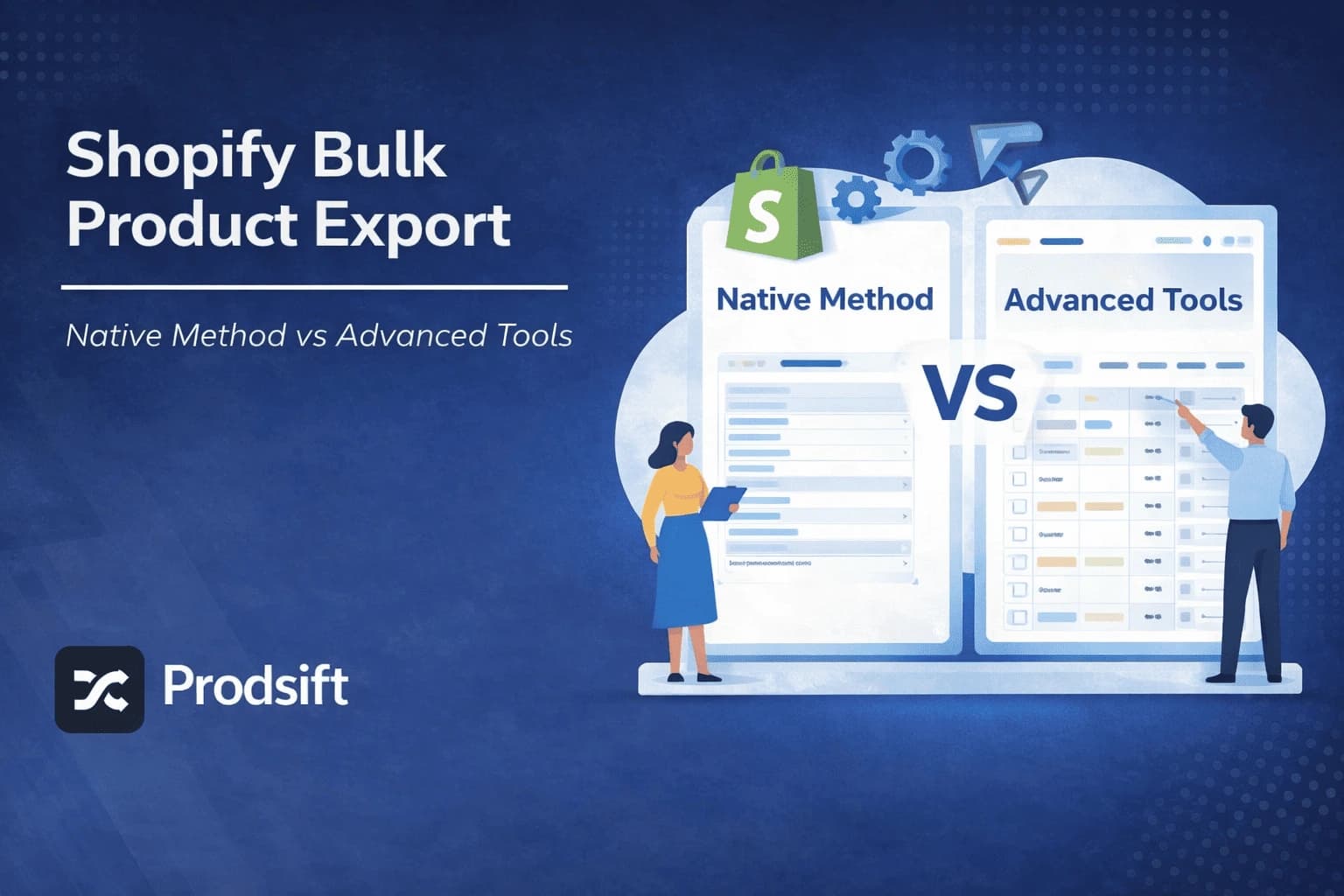
Native vs advanced tools: comparison
Here's a direct comparison of all three methods across the dimensions that matter most:
| Shopify Native | ProdSift | Admin API | |
|---|---|---|---|
| Works on stores you don't own | ✗ No | ✓ Yes | ✗ No |
| Requires admin access | ✓ Yes | ✗ No | ✓ Yes |
| Technical skill needed | None | None | Developer |
| WooCommerce-ready output | ✗ Needs reformatting | ✓ Yes | Needs custom code |
| Includes metafields | ✗ No | Core fields | ✓ Yes |
| Speed | Fast | Fast | Depends on catalog size |
| Cost | Free (admin) | Free / Pro plan | Free (dev time) |
| Best for | Backup & basic migration | Extraction & migration | Automation & custom data |
Which Shopify bulk product export method should you use?
The right choice comes down to one question: do you own the store you're exporting from, and what are you going to do with the data?
Use Shopify's native export if…
- You own the store and have admin access
- You're backing up your catalog or doing bulk price edits in a spreadsheet
- You're migrating to another Shopify store (same CSV format)
- You don't need metafields or custom data
Use ProdSift if…
- You want to extract from a store you don't own (supplier, competitor, reference store)
- You're migrating from Shopify to WooCommerce and want a ready-to-import CSV
- You're building a dropshipping or reseller store from an existing catalog
- You want the fastest path with no technical setup
Use the Admin API if…
- You need metafield data or media types not in the standard CSV
- You're building an automated, recurring export pipeline
- You need to feed product data into a custom system or ERP
- You or your team have developer resources to build and maintain the integration
What to do after you export
Getting the CSV is step one. What you do with it depends on your goal.
Importing into another Shopify store
If you exported from one Shopify store and want to import into another, the CSV is already in the right format. Go to Products → Import in the destination store's admin, upload the file, and Shopify will create all the products. Images are sideloaded from the URLs in the CSV automatically.
Importing into WooCommerce
If you exported from Shopify and want to import into WooCommerce, you have two paths. The hard path: manually remap Shopify's column names to WooCommerce's expected format in a spreadsheet editor — this typically takes 30–60 minutes per catalog and is error-prone. The fast path: use ProdSift to extract directly from the Shopify store and get a WooCommerce-formatted CSV out of the box.
Bulk editing before re-importing
One of the most powerful uses of a bulk export is opening the CSV in Google Sheets or Excel and editing many products at once — updating prices by a percentage, changing a vendor name across all products, or adding a tag to an entire category — then re-importing the modified file. Shopify will update existing products (matched by handle or ID) rather than creating duplicates, making this a fast way to make bulk changes that the Shopify admin doesn't support natively.
Pro tip: Before making bulk edits and re-importing, always keep an unmodified copy of the original export. If an import goes wrong, you'll want to be able to restore the original state quickly.
FAQ
Can I export Shopify products without admin access?
Not with Shopify's native tools — those require admin login. However, ProdSift can extract a full product catalog from any public Shopify store without credentials or admin access.
How many products can Shopify export at once?
Shopify's native export handles your entire catalog in one operation for most store sizes. For very large catalogs (tens of thousands of products), Shopify delivers the export via email as a compressed file rather than an instant download.
Does the Shopify CSV export include product images?
Yes — image URLs are included in the CSV. The actual image files are not embedded; instead, the CSV contains the hosted URLs. When you re-import, Shopify or WooCommerce fetches the images from those URLs automatically.
Can I export products from a Shopify store I don't own?
Not with Shopify's native admin tools. ProdSift is designed for exactly this use case — paste the store URL, and it extracts the full public product catalog without requiring store credentials.
Will Shopify's CSV work directly in WooCommerce?
No — the column names and data structure are different between platforms. You'd need to remap columns before WooCommerce will accept the file. The fastest workaround is to use ProdSift to extract the Shopify store directly, which outputs a WooCommerce-formatted CSV.
Can I export only a specific collection or product type?
Yes. In Shopify's Products admin, filter your products by collection, product type, vendor, or tag first — then click Export. Only the filtered products will be included in the export.
Is bulk exporting Shopify products legal?
Exporting your own store's products is fully within your rights. For third-party stores, publicly accessible product information is generally fair to access, but you should check the store's terms of service and applicable laws in your region before using that data commercially.
Need a Shopify bulk product export right now?
Paste any Shopify store URL and get a clean, import-ready CSV in seconds. First 5 products free — no credit card needed.
Start extracting free