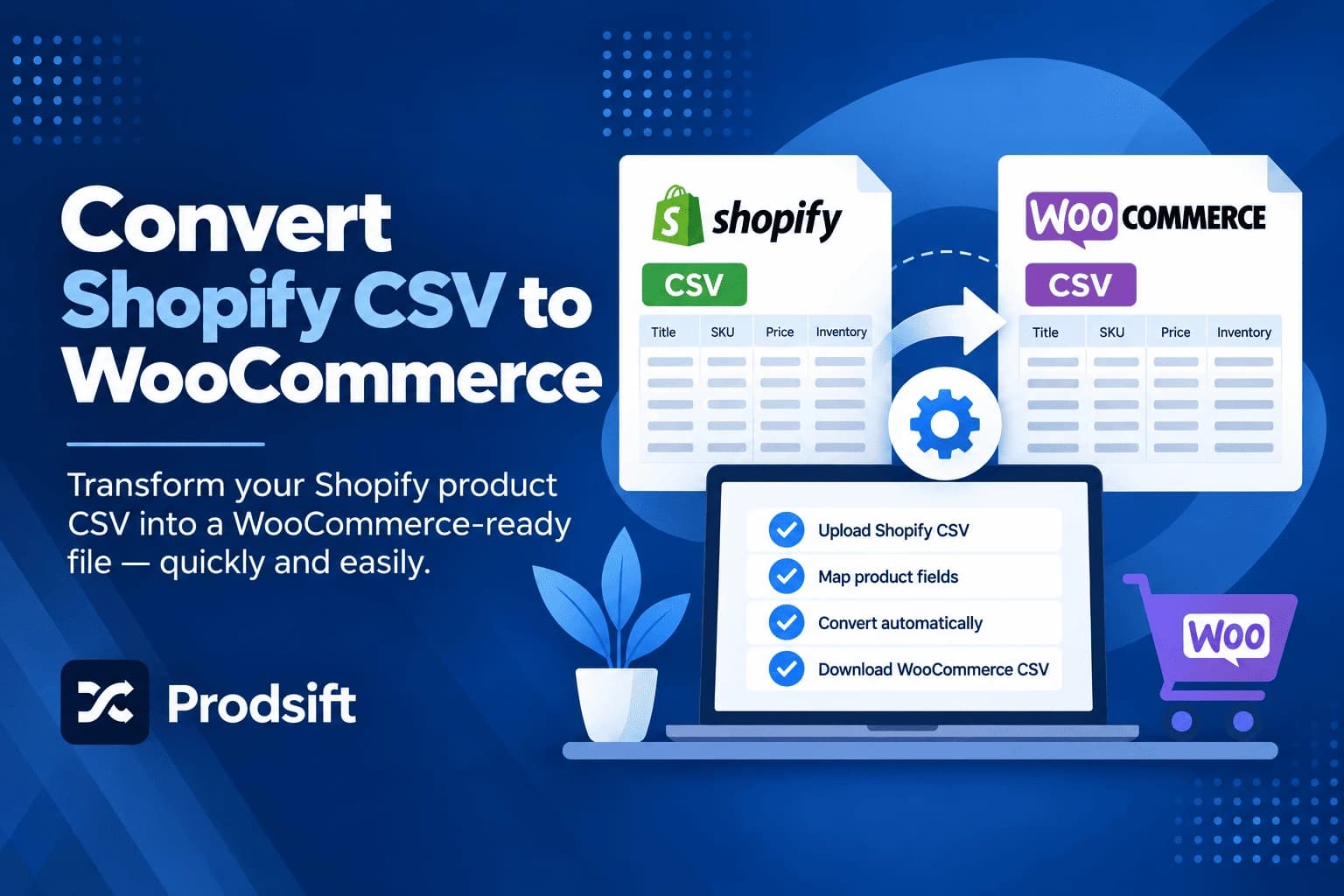
WooCommerce can't read a Shopify product CSV. The column names are different, the variant structure is different, and even prices and weights are stored differently. To convert a Shopify CSV to WooCommerce, you have to rebuild the file — not just rename the headers. This guide walks through the complete conversion: the column mapping, the variant restructure, a worked example, and the errors that break the import.
📥 Quick answer: To convert a Shopify CSV to WooCommerce format, export your products from Shopify as a plain CSV, then rebuild each product into WooCommerce rows: one variable parent row plus one variation row per variant, linked by the parent's SKU. Rename the columns (Title → Name, Body (HTML) → Description, Variant Price → Regular price), merge extra image rows into one comma-separated Images cell, and convert grams to your store's weight unit. Then import through WooCommerce → Products → Import.
Key Takeaways
- Renaming the columns isn't enough — Shopify and WooCommerce structure variants completely differently
- Shopify's "Default Title" option marks a simple product; it must not become a WooCommerce attribute
- Shopify's Compare At Price is WooCommerce's Regular price when a product is on sale — map them the wrong way round and every sale runs backwards
- Extra product images sit on their own rows in a Shopify CSV but share one cell in WooCommerce
- ProdSift exports a Shopify store directly as a WooCommerce CSV, skipping the conversion entirely
The conversion is tedious rather than difficult. Once you understand the two structures, every step is mechanical — which is also why it's easy to get subtly wrong across hundreds of rows.
Why you can't import a Shopify CSV into WooCommerce directly
Shopify and WooCommerce disagree on three things, and each one breaks the import on its own:
- Column names. WooCommerce's importer looks for Name, Description, and Regular price. Shopify's file has Title, Body (HTML), and Variant Price. The importer's column mapper can bridge some of these, but not the structural differences below.
- Variant structure. Shopify groups all variants of a product under one shared Handle, with product details on the first row only. WooCommerce needs a separate parent row of type
variable, followed by variation rows that each point back to the parent. - Images. Shopify puts each additional image on its own row, with only the Handle and Image Src filled in. WooCommerce expects every image URL for a product in a single cell.
Import a Shopify file as-is and WooCommerce reads each variant row, and each image row, as a separate product.
Shopify to WooCommerce column mapping
| Shopify column | WooCommerce column | Conversion notes |
|---|---|---|
| Handle | — | No direct equivalent; use it to group rows, then as the base for parent SKUs |
| Title | Name | Parent row only |
| Body (HTML) | Description | HTML carries over unchanged |
| Type | Categories | Use > for nested categories, e.g. Clothing > T-Shirts |
| Tags | Tags | Comma-separated in both |
| Status / Published | Published | active or TRUE → 1, draft or FALSE → 0 |
| Option1 Name | Attribute 1 name | e.g. Size |
| Option1 Value | Attribute 1 value(s) | All values on the parent row, one value per variation row |
| Variant SKU | SKU | Variation rows |
| Variant Price | Regular price or Sale price | See the pricing step below |
| Variant Compare At Price | Regular price | Only when higher than Variant Price |
| Variant Inventory Qty | Stock | Set In stock? to 1 or 0 to match |
| Variant Inventory Policy | Backorders allowed? | continue → 1, deny → 0 |
| Variant Grams | Weight | Convert to your store unit — grams ÷ 1000 for kg |
| Image Src | Images | Merge all of a product's image rows into one comma-separated cell |
| Vendor | — | No native field; move to a tag or a Brand attribute |
| SEO Title, SEO Description | — | Not handled by the default importer; needs an SEO plugin |
Pro tip: Before converting anything, export one variable product you create by hand in WooCommerce. The resulting CSV gives you WooCommerce's exact column headers for your version and a correctly structured parent-and-variation example to copy.
How to convert a Shopify CSV to WooCommerce (step-by-step)
Work in Google Sheets rather than Excel — Excel strips leading zeros from SKUs and barcodes when it opens a CSV.
- Export from Shopify as a plain CSV — go to Products → Export, choose All products, and select Plain CSV file.
- Separate simple and variable products — any product whose Option1 Name is Title and Option1 Value is Default Title has no real variants. It becomes a single WooCommerce row of type
simple. Everything else becomes a variable product. - Build a parent row for each variable product — set Type to
variable, and fill in Name, Description, Categories, Tags, and Published from the Shopify product's first row. Give it a unique SKU, such as the Handle. Put every option value in Attribute 1 value(s), comma-separated, and set Attribute 1 visible to 1. - Build a variation row for each variant — set Type to
variation, set Parent to the parent row's SKU, and fill in that variant's SKU, price, stock, weight, and its single attribute value. Leave Name and Description blank on variation rows. - Fix the pricing — if Variant Compare At Price is higher than Variant Price, the product is on sale: Compare At Price goes in Regular price and Variant Price goes in Sale price. Otherwise, Variant Price goes in Regular price and Sale price stays empty.
- Merge the image rows — collect every Image Src belonging to a Handle into one comma-separated Images cell on the parent (or simple) row. The first URL becomes the featured image. Then delete the image-only rows.
- Convert the remaining fields — weights from grams to your store's unit, Published to 1 or 0, inventory policy to Backorders allowed?, and Vendor to a tag or attribute if you want to keep it.
- Export as CSV with UTF-8 encoding — File → Download → Comma-separated values in Google Sheets saves UTF-8 by default.
- Test with a few products first — import 3 to 5 products through WooCommerce → Products → Import, check each one in the store, then import the rest.
⚠️ Critical: Never sort the sheet once parent and variation rows are built. Sorting separates variations from their parent, and WooCommerce imports orphaned variations as broken products. Use Find & Replace or filters instead.
Worked example: converting one product
Here's a T-shirt with three sizes and two images, as Shopify exports it:
| Handle | Title | Option1 Name | Option1 Value | Variant SKU | Variant Price | Variant Compare At Price | Image Src |
|---|---|---|---|---|---|---|---|
| classic-tee | Classic Tee | Size | Small | TEE-SM | 20.00 | 25.00 | …/tee-front.jpg |
| classic-tee | Medium | TEE-MD | 20.00 | 25.00 | …/tee-back.jpg | ||
| classic-tee | Large | TEE-LG | 22.00 | 27.00 |
And here's the same product converted to WooCommerce format:
| Type | SKU | Name | Parent | Attribute 1 name | Attribute 1 value(s) | Regular price | Sale price | Images |
|---|---|---|---|---|---|---|---|---|
| variable | classic-tee | Classic Tee | Size | Small, Medium, Large | …/tee-front.jpg, …/tee-back.jpg | |||
| variation | TEE-SM | classic-tee | Size | Small | 25.00 | 20.00 | ||
| variation | TEE-MD | classic-tee | Size | Medium | 25.00 | 20.00 | ||
| variation | TEE-LG | classic-tee | Size | Large | 27.00 | 22.00 |
Three things changed beyond the column names. The product now has its own parent row. The second image moved from a variant row into the parent's Images cell. And because the product is on sale, the Compare At Prices became Regular prices while the Shopify prices became Sale prices.
The faster way: export straight to WooCommerce format
The manual conversion works, but on a catalog of hundreds of products with several options each, it's hours of careful spreadsheet work where one misplaced row breaks a product.
ProdSift skips the conversion entirely. Paste the Shopify store's URL and export a WooCommerce CSV directly — parent rows, variation rows, attributes, prices, and images already structured the way WooCommerce's importer expects. It works on any public Shopify store, including your own, and the free plan exports 5 products so you can test the import first.
Skip the conversion
Export any Shopify store straight to a WooCommerce-ready CSV — variants, images, and prices already structured for the importer. First 5 products free.
Try it freeFor the pricing and planning side of a full move, see how much it costs to migrate to WooCommerce. For the complete process, see the Shopify to WooCommerce migration guide.
Common conversion errors and fixes
🔧 Every variant imported as a separate product
The variation rows aren't linked to a parent. Check that each variation row has Type set to variation and a Parent value that exactly matches the parent row's SKU, and that the parent row has Type set to variable.
🔧 Products show an attribute called "Title" with the value "Default Title"
These were simple products in Shopify. Shopify stores every product with at least one variant, and uses Title / Default Title when there are no real options. Convert these to single simple rows with no attribute columns filled in.
🔧 Sale prices are backwards or missing
Compare At Price and Variant Price were mapped the wrong way round. In WooCommerce, Regular price is the original price and Sale price is the discounted one — so Shopify's Compare At Price belongs in Regular price whenever it's higher than the Variant Price.
🔧 Only the first image imported
The extra image rows weren't merged. Each additional Shopify image sits on its own row; collect them all into the parent row's Images cell, comma-separated, and remove the image-only rows.
🔧 Product weights are 1,000 times too heavy
Shopify's Variant Grams column is always in grams. If your WooCommerce store uses kilograms, divide by 1,000 before importing.
🔧 Special characters appear as garbled text
The file was saved without UTF-8 encoding. Re-export from Google Sheets, or in Excel use Save As → CSV UTF-8.
Frequently asked questions
How do I convert a Shopify CSV to WooCommerce?
Export your products from Shopify as a plain CSV, then restructure the file in a spreadsheet: create a variable parent row for each product and a variation row for each variant, rename the columns to WooCommerce's format, merge image rows, and fix prices and weights. Import the result through WooCommerce → Products → Import.
Can I import a Shopify CSV into WooCommerce without converting it?
No. WooCommerce's importer can map some column names, but it can't restructure Shopify's variant and image rows into WooCommerce's parent and variation format. Without conversion, each variant and image row imports as a separate product.
Is there a tool to convert a Shopify CSV to WooCommerce?
Yes. Migration tools like Cart2Cart and LitExtension move data between the two platforms directly, and ProdSift exports any public Shopify store as a WooCommerce-formatted CSV, so there's nothing to convert.
How do I import Shopify products with variants into WooCommerce?
Each Shopify product with variants needs a WooCommerce parent row of type variable, listing every attribute value, followed by one variation row per variant with its own SKU, price, and single attribute value. Each variation row's Parent column must contain the parent row's SKU.
What does "Default Title" mean in a Shopify CSV?
It marks a product with no real variants. Shopify gives every product at least one variant and labels it Title / Default Title when there are no options. When converting to WooCommerce, these become simple products with no attributes.
Why are my prices wrong after converting from Shopify to WooCommerce?
Usually because Compare At Price and Variant Price were swapped. Shopify's Compare At Price is the original price, which goes in WooCommerce's Regular price; Shopify's Variant Price is then the Sale price.
Do Shopify SEO titles and descriptions import into WooCommerce?
Not with WooCommerce's default importer, which has no SEO fields. You'll need an SEO plugin that supports importing its own meta fields, or you'll have to re-enter them after import.
Will my product URLs stay the same after converting?
No. WooCommerce builds its own product URLs, so the old Shopify URLs won't exist on your new store. Set up 301 redirects from each old URL to its new one to keep your search rankings.
Get a WooCommerce CSV in seconds
ProdSift extracts any public Shopify store and exports it in WooCommerce format — no spreadsheet work, no broken variants. First 5 products free — no credit card.
Start extracting free